
If you need the same video in five, ten, or fifty variations, the problem is usually not rendering. It is structure. Once the project lives in scattered timeline edits, every new version turns into a manual rebuild.
That is the part VideoFlow solves well. It lets you describe a video as portable JSON, author scenes with TypeScript, and render the same project in the browser, on a server, or in a live DOM preview. For product demos, social clips, onboarding videos, and report-style exports, that gives you one source of truth instead of a pile of one-off edits.
What you will learn:
- How to model product data as reusable video input.
- How VideoFlow's core, renderers, and React editor fit together.
- When browser export, server render, and live preview each make sense.
- How to keep one template flexible enough for many outputs.
Start With The Data, Not The Timeline
The easiest way to think about VideoFlow is this: your video is a structured object first, and a rendered MP4 second. That matters because product data is already structured. You may have a headline, a feature list, screenshots, pricing notes, or a collection of assets that need the same intro and CTA in every variation.
Instead of dragging clips around by hand for every version, keep those inputs in a reusable shape. Then the video template can read from that shape and build scenes from it. For ecommerce teams, that could mean product launches, comparison clips, seasonal promos, or collection spotlights. For SaaS teams, it could mean feature demos, onboarding flows, or release notes turned into short videos.
That approach is also friendlier for automation. If a system or agent can generate structured data, it can generate a repeatable video spec without needing to understand a manual editor.
Author The Video In TypeScript
VideoFlow's core package, @videoflow/core, is built for code-driven composition. You define layers, group them, chain animations, attach transitions, and compile the whole thing into VideoJSON. The important part is portability: the same project can be stored, reviewed, rendered, and edited later without losing structure.
In practical terms, that means you can build a video once and then reuse the template for future jobs. The core supports text, image, video, audio, captions, and shape layers, plus keyframes and grouping. That is enough to model a typical product video with a headline card, a feature section, a callout, and a branded close.
If you want to inspect the developer surface area, start with the core docs and the playground. The repository is also open source on GitHub, which makes it easier to evaluate the architecture before you commit to it.
Choose The Right Renderer For The Job
This is one of VideoFlow's strongest ideas: the same JSON can render in more than one place. That gives you flexibility without forcing you to rebuild the project when your runtime changes.
The browser renderer is useful when you want exports to happen inside the app. That keeps the workflow lightweight and avoids uploading the whole project to a backend just to create an MP4. The server renderer is better when you need queue-based jobs, scheduled renders, or batch production. The DOM renderer is the one I would use for a live preview or editor experience where people need to scrub and inspect changes frame by frame.
Put simply:
- Use the browser renderer for in-app export and lower server overhead.
- Use the server renderer for API jobs, scheduled jobs, or higher-volume rendering.
- Use the DOM renderer for frame-accurate previews inside a dashboard or editor.
That separation is easier to reason about than one giant rendering path that tries to do everything. It also helps when you are debugging. If the same VideoJSON behaves differently across backends, you know the issue is in the renderer layer rather than the template itself.

Add A Reviewable Editor When The Team Grows
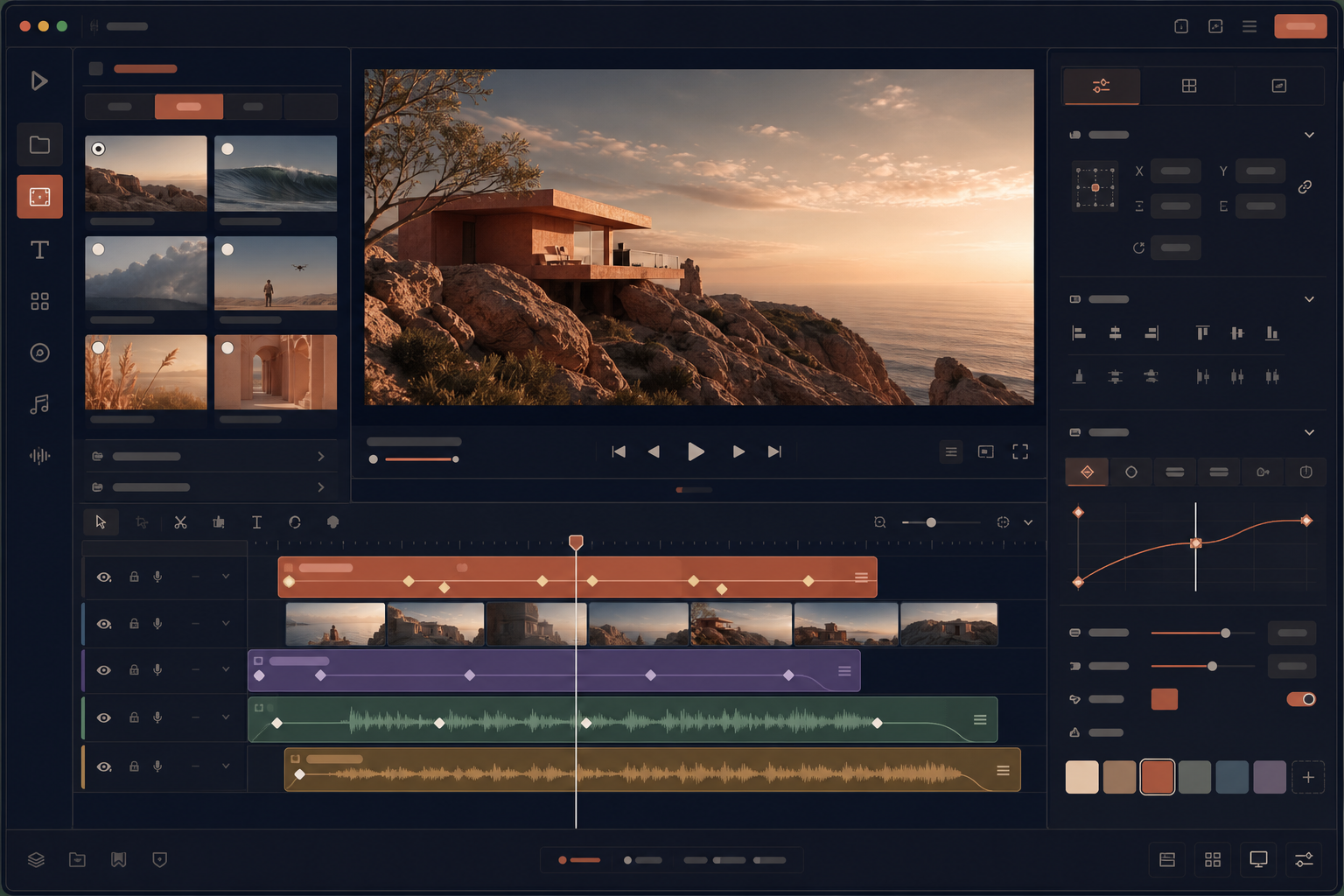
Once more than one person needs to touch the output, a code-only workflow usually becomes a bottleneck. That is where @videoflow/react-video-editor matters. It gives you a drop-in React component with a multi-track timeline, a live preview, drag and trim controls, an inspector, keyframes, undo/redo, and MP4 export.
The value here is not that everyone becomes a video editor. The value is that non-developers can make safe changes to a structured template without breaking the whole pipeline. You can keep the source of truth in VideoJSON and still let the rest of the team adjust layer timing, copy, or assets through a UI.
The editor also ships with built-in themes and CSS variable customization, which makes it much easier to fit into an existing app than wiring together a custom timeline from scratch.
Keep One Template, Then Generate Variants
Product data becomes especially powerful when one template can branch into many outputs. You can swap a hook, change the product angle, adjust aspect ratio, update imagery, or localize the CTA without redesigning the video from zero each time.
That is the right level of automation for teams that need consistency. The template controls the structure, while the data controls the message. If you want a different launch version, a different collection, or a different social crop, you edit the inputs instead of rebuilding the scene.
This is also a good fit for AI-assisted workflows. An agent can generate structured video data, but VideoFlow keeps the render predictable. That is a healthier split than asking a model to improvise directly inside a timeline.

When VideoFlow Is The Better Choice
VideoFlow is not trying to replace every editing tool. It is strongest when the work is structured, repeatable, and tied to data. If you are making one-off creative edits by hand, a traditional editor may still be the better fit. If you need low-level transcoding or filter work, FFmpeg remains incredibly useful.
But if your problem looks like any of these, VideoFlow is worth a close look:
- You need repeatable product or promo videos from the same source data.
- You want browser, server, and preview rendering from one project.
- You are building a SaaS product with an embedded video editor.
- You are trying to make AI-generated video output more deterministic.
That is why articles like How to Build a Browser-Based MP4 Export Pipeline with VideoFlow, How to Turn JSON Into MP4 Videos in TypeScript with VideoFlow, How to Build a Portable JSON-to-Video Pipeline with VideoFlow, and How to Build a Portable JSON-to-Video Workflow with VideoFlow fit naturally together. They are all different views of the same idea: make the video project portable enough that you can render it wherever your workflow needs it.
Next step: open the docs, sketch one repeatable video template, and test it in the playground before you commit to a larger pipeline.
If you are building a product demo engine, a campaign video system, or a reusable export workflow, VideoFlow gives you a practical starting point without locking you into a single runtime.
Comments
Post a Comment