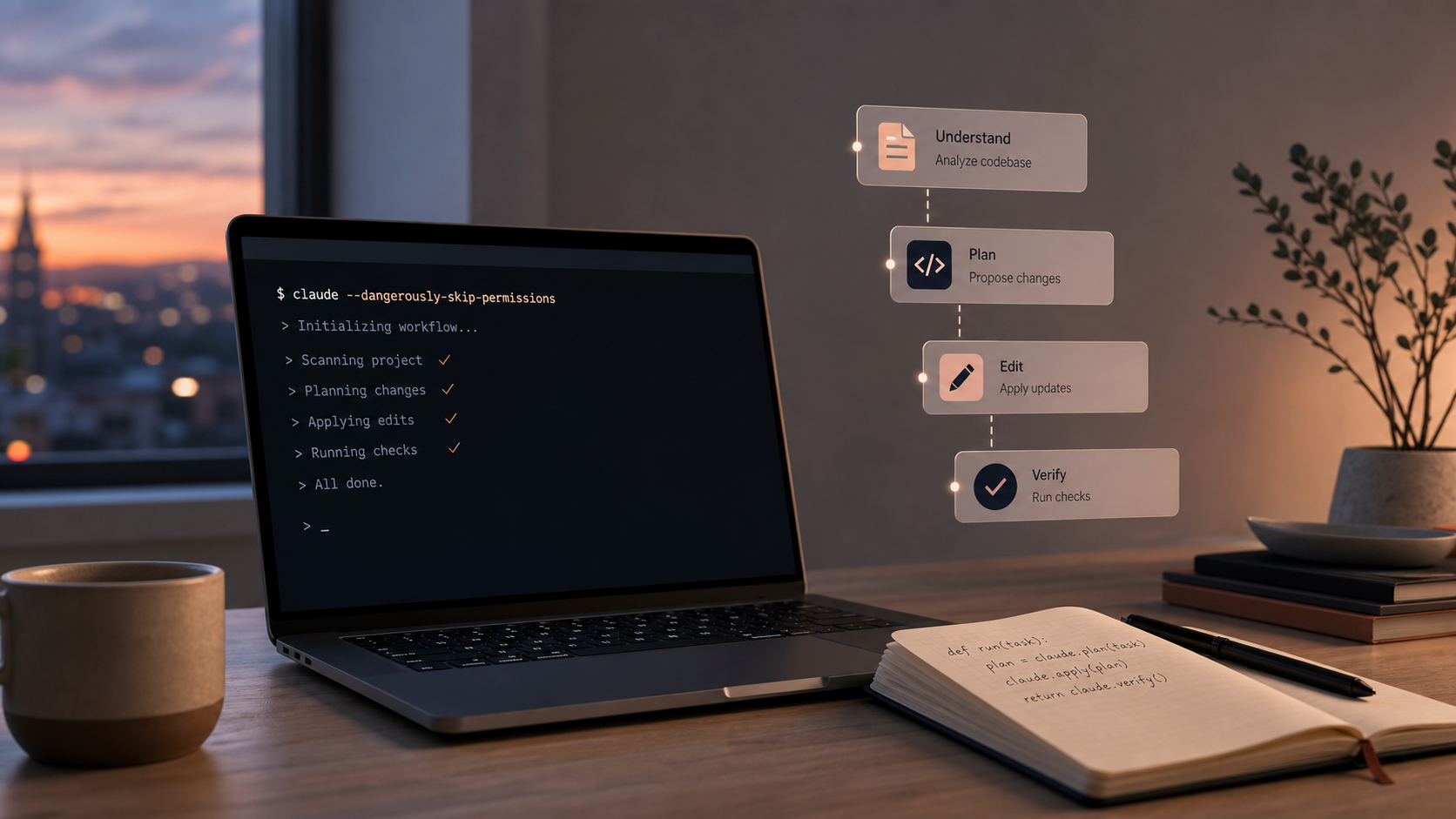
If you already use Claude Code in the terminal, dash-p gives you a practical middle ground: keep the real interactive session, but control it from scripts or TypeScript. It launches the official claude command, feeds it input programmatically, and reads the rendered output back into your code.
If you want to try it, the project lives on GitHub and ships as the @ybouane/dash-p npm package.
That makes it useful when you want repeatable local automation without switching your whole workflow to a headless API path. Anthropic keeps paid Claude plans and the API/Console as separate products, so this is less about hacking around billing and more about choosing the workflow that fits the job. Anthropic's help center explains the separation, and the pricing page shows the current token-based rates.
What I Get From dash-p
At a high level, dash-p is a bridge between the Claude Code session you already trust and the kind of automation you usually write around shell scripts or SDK calls.
- It drives the real Claude TUI instead of inventing a separate headless protocol.
- It keeps your normal login, permissions, and local session behavior.
- It exposes a
query()API that feels familiar if you’ve used agent-style SDKs. - It works well for small, repeatable workflows where local context matters.
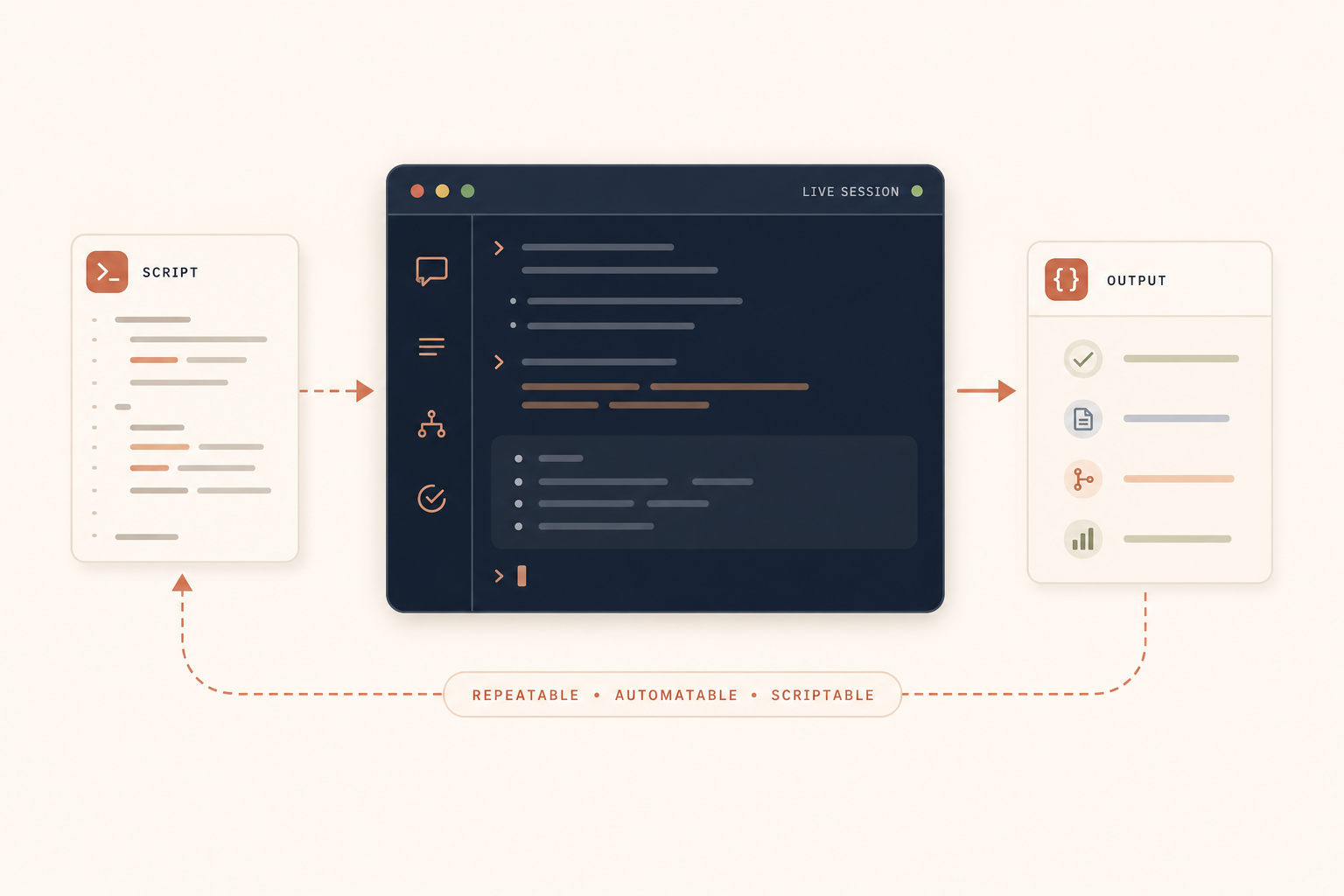
The use case I keep coming back to is boring on purpose: summarize a repo, inspect a branch, or turn a quick prompt into a repeatable command. For store teams, I’d think about the same pattern for theme diffs, content checks, or quick release notes.
Where It Fits
I would use dash-p when I want Claude Code to stay interactive in spirit, but still be callable from a script.
That usually means one of four things:
- I want a quick repo summary before I touch a release.
- I want a shell script that returns structured output I can parse later.
- I want TypeScript code to orchestrate a local Claude session.
- I want the same account, session, and permissions I already use manually.
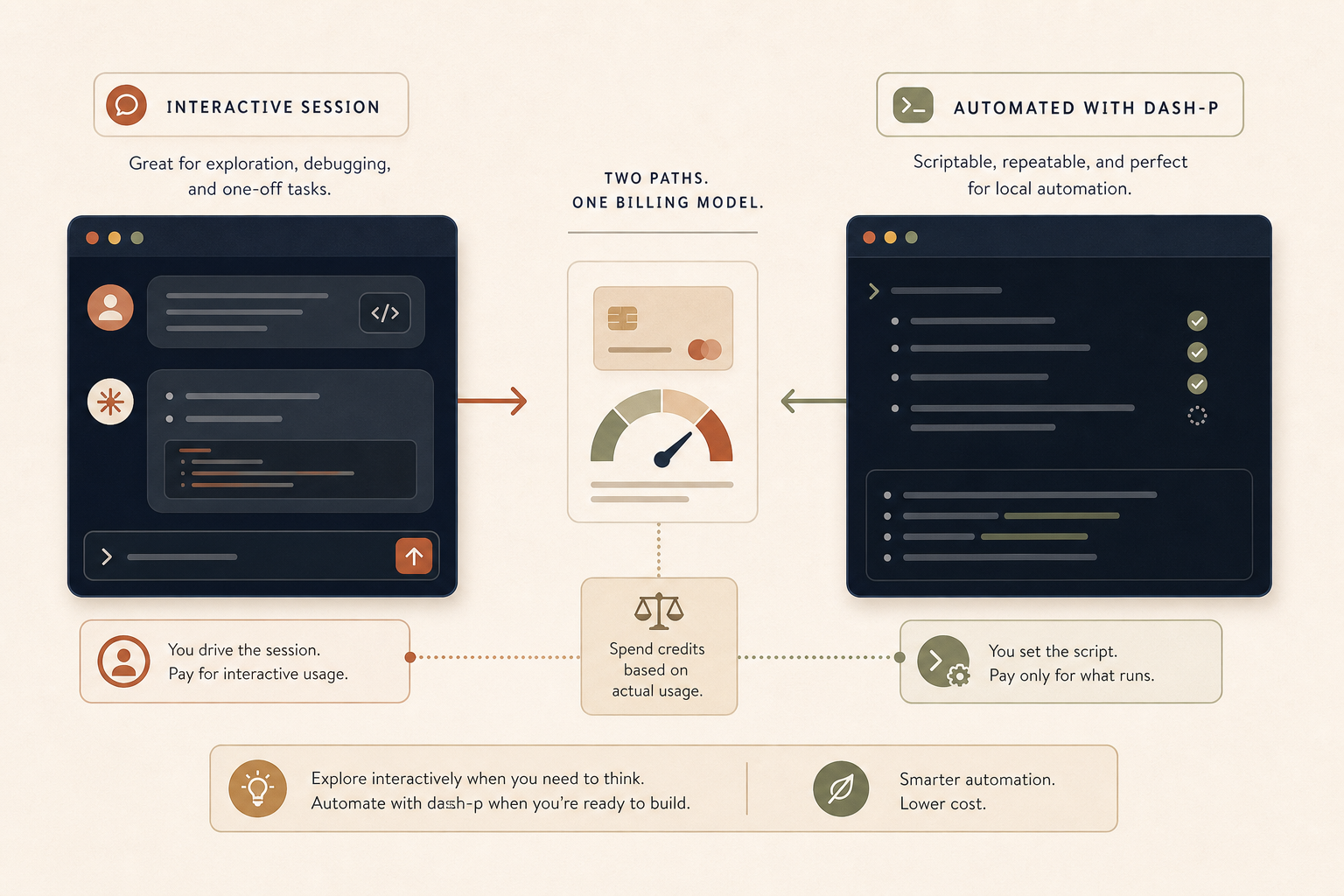
The pricing and workflow angle matters because the “interactive session” and the “API-style automation” paths are not the same experience. If you spend most of your time thinking inside the terminal, a local bridge is often a cleaner fit than moving your entire routine into a new SDK shape.
A Small Example
The CLI is intentionally simple:
npm install -g @ybouane/dash-p
dash-p "summarize this repo and list the riskiest files"
And the SDK shape is what makes the tool interesting for real workflow glue:
import { query } from "@ybouane/dash-p";

for await (const msg of query({
  prompt: "Review these changes and return a short checklist.",
  options: {
    model: "sonnet",
    includePartialMessages: true,
  },
})) {
  if (msg.type === "result") {
    console.log(msg.result);
  }
}
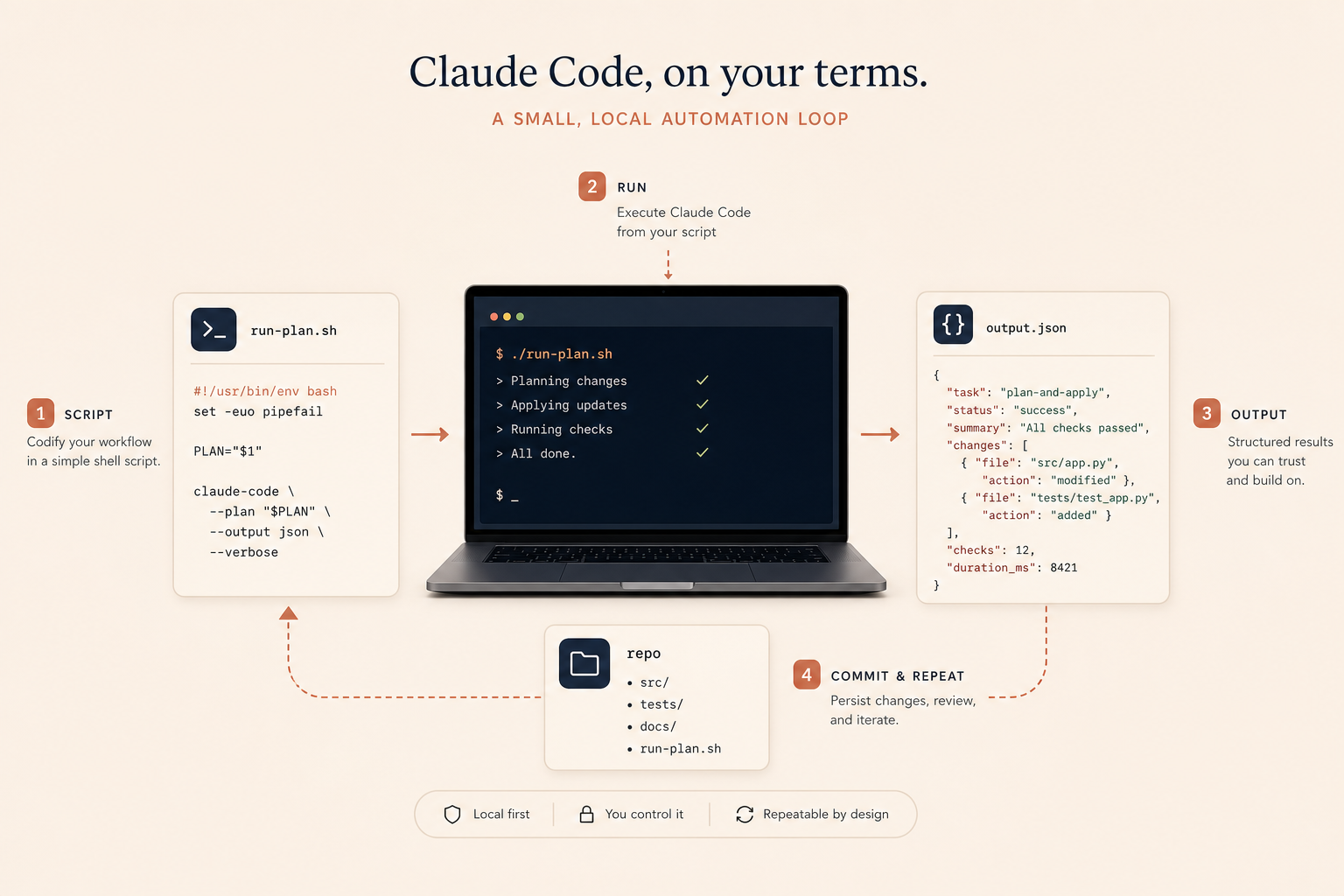
That pattern is what I’d use when I want a repeatable prompt, a local working directory, and output I can feed into another step. It is especially handy if you are already composing automation around git, deployment scripts, or content pipelines.
The Tradeoffs
dash-p is powerful because it uses the real interface, and that same choice is also the risk.
- It depends on the official
claudeCLI being installed and logged in. - It is coupled to the rendered TUI, so interface changes can break it.
- It is best for local workflows and personal automation, not for pretending you have a hosted production API.
- It does not bypass authentication, permissions, or account limits.
If you want a lower-friction way to experiment, start with a read-only task first: summarize a repo, inspect a branch, or return JSON that another step can consume. Once that is stable, move the tool into a script you run the same way every time.
If you like this sort of workflow thinking, I’ve also written about building a draft-first Shopify blog system, automating Shopify blog posts without generic AI content, a JSON-first video workflow, and Shopify AI agents with scoped permissions.
My Rule Of Thumb
Use dash-p when the job is local, repetitive, and easier to trust inside the terminal than inside a brand-new automation stack.
If the task is a one-off, keep Claude Code interactive.
If the task is repeatable, wrap it.
If the task needs machine-readable output, keep the script small and let the tool do one thing well.
That is the real value here: not a new model, not a new account, and not a fake headless clone. It is a practical way to make the Claude Code session you already have a little more scriptable.
Start with one small task today, then keep the script if it saves you time twice.
Comments
Post a Comment