If your shoppers have to click into every product just to find the color they want, you’re leaking conversions. Color swatches on product and collection pages remove friction, increase product discovery, and lift add‑to‑cart rates. In this guide, you’ll learn the fastest, no‑code way to add beautiful color and image swatches across your store—on both product pages and collection pages—using the highly customizable Supra Swatch Colors app.
Pro tip: You can be live in minutes. Install Supra Swatch Colors from the Shopify App Store: https://apps.shopify.com/swatch-colors-ultimator
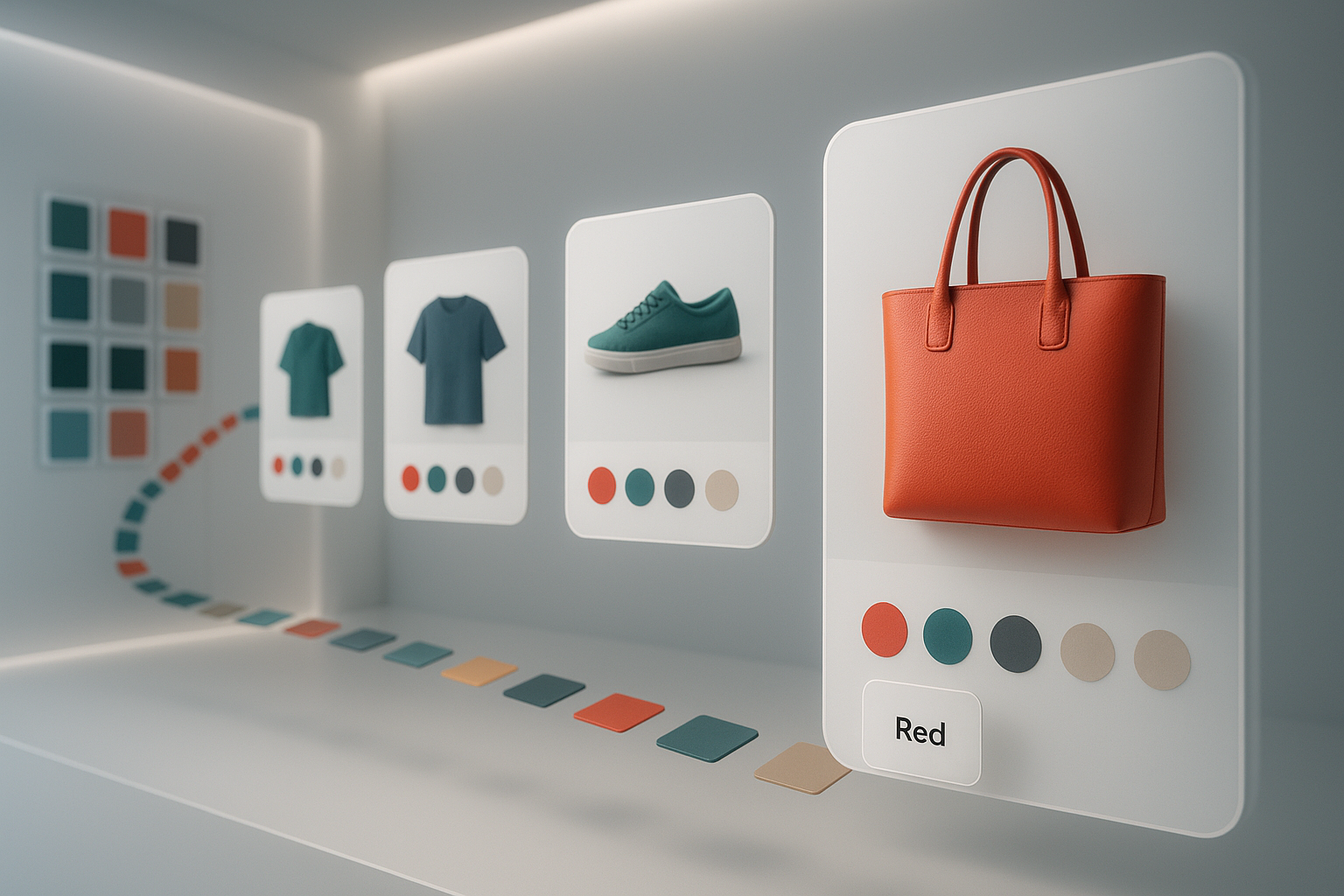
Why color swatches matter for ecommerce UX
- Reduce clicks and bounce: Shoppers instantly see what’s available at a glance—no endless back‑and‑forth.
- Boost conversion and AOV: Faster decisions, fewer dead‑ends, more product exploration.
- Improve visual merchandising: Color and pattern are first‑impression signals; swatches surface them beautifully.
- Scale effortlessly: Manage thousands of swatches with consistent styling.
The fastest way: Supra Swatch Colors
Supra Swatch Colors is a powerful, no‑code app that adds color and image swatches to product and collection pages. It works even if your colors are separate products or standard variants—so you can unify your browsing experience.
Install now: https://apps.shopify.com/swatch-colors-ultimator
Key capabilities you’ll use today:
- Highly customizable swatches with 20+ styles (size, shape, borders, tooltip, label font, and more)
- Variant color swatches and linked‑product swatches (group separate products into one swatch set)
- Built‑in integration for product and collection pages, compatible with all themes
- Auto‑detect your store colors or map to product images for ultra‑fast setup
- Multilingual support and instant loading for smooth UX
Before you start: pick your swatch strategy
You have two great options—choose one or mix both: 1) Turn existing variants (Color, Colour, Couleur, Farbe, etc.) into polished swatches. 2) Link separate products (e.g., Red Tee, Blue Tee, Black Tee) into one unified color selector.
Either way, you’ll get consistent, clickable swatches on product and collection pages—no coding required.
Option A: Turn variant options into color swatches (no code)
1) Install Supra Swatch Colors: https://apps.shopify.com/swatch-colors-ultimator 2) Open the app and let it auto‑detect your color option. It understands multiple languages and common synonyms. 3) Choose your swatch style: round or square, outline vs. fill, size, gap, and hover. Add labels and tooltips if you want. 4) Pick the color source:
- Color values (e.g., #000000, Navy) auto‑render as swatches.
- Use product images to create exact fabric or pattern swatches. 5) Toggle Product Page integration on. No theme edits needed. 6) Save and preview. Test hover, selection, and thumbnail changes on a product with multiple colors.

What to check:
- Do selected swatches update the featured image? If not, enable image syncing in the app.
- Are labels or tooltips clear? Adjust typography, capitalization, or show/hide labels.
Option B: Link separate products with color swatches (product groupings)
If each color is its own product, group them into a single swatch family so shoppers can switch colors without leaving the page.
1) In Supra Swatch Colors, create a new Product Group. 2) Add products by handle or ID (Red, Blue, Black versions of the same style). 3) Choose the swatch style (color chips or small image thumbnails). 4) Set rules: show out‑of‑stock as crossed out, sync price on selection, and define default color. 5) Enable on Product Page and Collection Page. 6) Save and preview. Clicking a swatch should seamlessly load the linked product.
Tip: Use image swatches for patterns, prints, or textured materials. It increases clarity and reduces returns.
Add color swatches to collection pages (built‑in)
Showing swatches on collection grids is a proven way to reduce pogo‑sticking. Shoppers can scan all colors and jump straight to their favorite.
1) In Supra Swatch Colors, go to Collection Page integration. 2) Toggle it on—no theme edits required. 3) Choose how many swatches to display per product card and whether to stack or scroll. 4) Decide behavior for unavailable colors (hide, fade, or strike‑through) and hover tooltips. 5) Save and check a collection page to confirm the layout looks perfect on desktop and mobile.

Styling tips for on‑brand swatches
- Match shape and size to your brand: minimalist stores often prefer small round chips; fashion stores may favor slightly larger squares with thin borders.
- Use image swatches for complex fabrics: tweed, floral, camo, or marled knits.
- Keep tooltips short: color name + finish (e.g., Olive Matte).
- Make accessibility a priority: ensure sufficient contrast on light backgrounds and provide clear focus states.
- Limit visible swatches on collection cards (e.g., 4–6) and show +X more to avoid clutter.
Performance, compatibility, and multilingual
- Instant loading: Swatches render fast to keep pages snappy.
- Works with every theme: No template edits required.
- Multilingual shops: Auto‑detects common color option names; tooltips and labels play nicely with your translations.
- Scales to large catalogs: Manage thousands of swatches and product groups with ease.
Common questions (and quick fixes)
- Swatches not appearing? Ensure Product Page and Collection Page toggles are on in the app. Then refresh theme preview.
- Your color option is named something unusual? Map it in the app settings or rely on auto‑detect.
- Variant image not switching? Turn on image syncing and confirm each variant has an assigned image in your product admin.
- Want patterns instead of solid colors? Switch to image swatches and feed them from product media.
Learn by watching: quick video tutorials
- Getting started tutorial: https://www.youtube.com/watch?v=K_2l9G1ibIo
Ready to launch beautiful swatches?
You’re minutes away from swatches that look and feel custom‑built—without touching code. Install Supra Swatch Colors from the Shopify App Store: https://apps.shopify.com/swatch-colors-ultimator
If you prefer to explore the product site first, visit: https://supra-swatch-colors.sktch.io/
Final checklist before you ship:
- Product pages show color or image swatches with clear selection states
- Collection pages display a tidy row of swatches with hover tooltips
- Variant images swap cleanly; out‑of‑stock colors are visibly handled
- Labels and typography match your brand
With these best practices, your store gains the instant clarity shoppers expect—and the smooth, conversion‑ready experience your team deserves.
Comments
Post a Comment