If you want a Squarespace site you can keep, move, or host on your own server, ExFlow.site is the tool I’d look at first. It exports a Squarespace URL into static HTML, CSS, JS, and media files, and it can also sync the result to Git, S3, or FTP.
Squarespace’s own export help center is useful, but it is aimed at WordPress XML and does not export everything. The official docs spell that out here: Squarespace Exporting your site. If your goal is a clean static copy you can host elsewhere, that is where ExFlow fills the gap.
TL;DR
- Use ExFlow when you want a full static copy of a Squarespace site.
- Export from a URL, choose what to include, then download or sync.
- Keep your own files if you want cheaper hosting, more control, or a migration path.
- If you only need WordPress XML, Squarespace’s built-in export may be enough.

What ExFlow exports
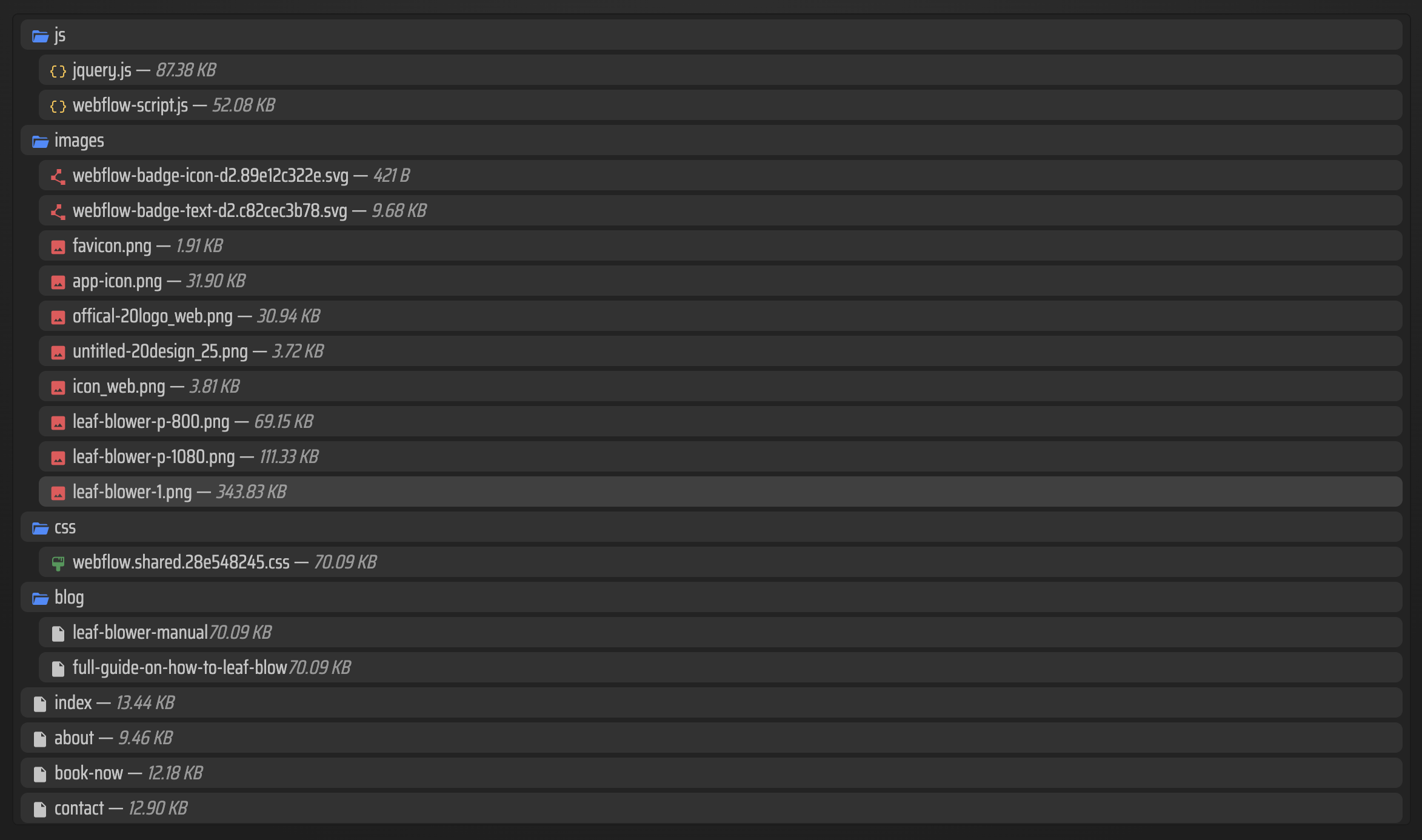
ExFlow is built around the things that matter when you are trying to preserve a site outside Squarespace:
- site URL input
- CSS files
- JavaScript files
- images and media files
- all pages as .html
- custom script.js and style.css
- sync to Git, S3, or FTP
- built-in hosting status
- unlimited bandwidth
That combination is useful because the export is not just a zip of loose files. It is a site structure you can actually continue to work with.

A practical export workflow
- Enter the Squarespace site URL in ExFlow.
- Turn on the pieces you need. If you want a fuller mirror, include CSS, JS, images, and all pages.
- Add custom script.js or style.css only if your project needs extra behavior or overrides.
- Choose a destination. Download the export first if you want to inspect it locally, or sync straight to Git, S3, or FTP if your deployment is already set up.
- Verify the site by opening key pages, checking navigation, and confirming images and media load correctly.

When self-hosting makes sense
I usually think about exporting a Squarespace site when one of these is true:
- you want to reduce recurring platform costs
- you need more control over hosting or deployment
- you want to make file-level changes that Squarespace’s editor does not support
- you want a local archive you can keep independent of the platform
- you are migrating a site and do not want to rebuild every page by hand
If the site is password-protected, ExFlow supports that when you provide the password. That matters when you are exporting work-in-progress sites or private client builds.
How to host the exported site
- Host it on ExFlow’s servers if you want the simplest path.
- Sync to Git if your team already deploys from a repository.
- Sync to S3 if you want low-cost static hosting.
- Sync to FTP if you are working with a traditional server.
The right choice depends on your workflow, not on the tool. If you already know how you want to deploy static files, ExFlow is doing the hard part: building the export in the first place.
ExFlow vs a generic site copier
A generic site copier can be fine for very simple pages, but Squarespace sites are not always simple. They often depend on dynamic blocks, lazy-loaded media, and platform-specific structure. ExFlow is positioned as a Squarespace exporter first, which makes it a better fit when the goal is a working static copy rather than a rough scrape.
If you are comparing site-export workflows across builders, these related guides may help:
- How to Export a Squarespace Site to HTML and Host It Yourself
- How to Export a Webflow Site to Static HTML with ExFlow
- How to Download a Webflow Site and Host It Yourself with ExFlow
- Webflow CMS to HTML: A Practical Export and Self-Hosting Checklist
Bottom line
If you need a Squarespace site in a format you can keep, move, and host on your own terms, ExFlow.site is the practical route. Start with one export, check the output carefully, and then decide whether you want to download it locally or sync it into your normal deployment path.
The simplest next step is to test ExFlow on one real Squarespace URL and inspect the exported files before you commit to a migration.
Comments
Post a Comment