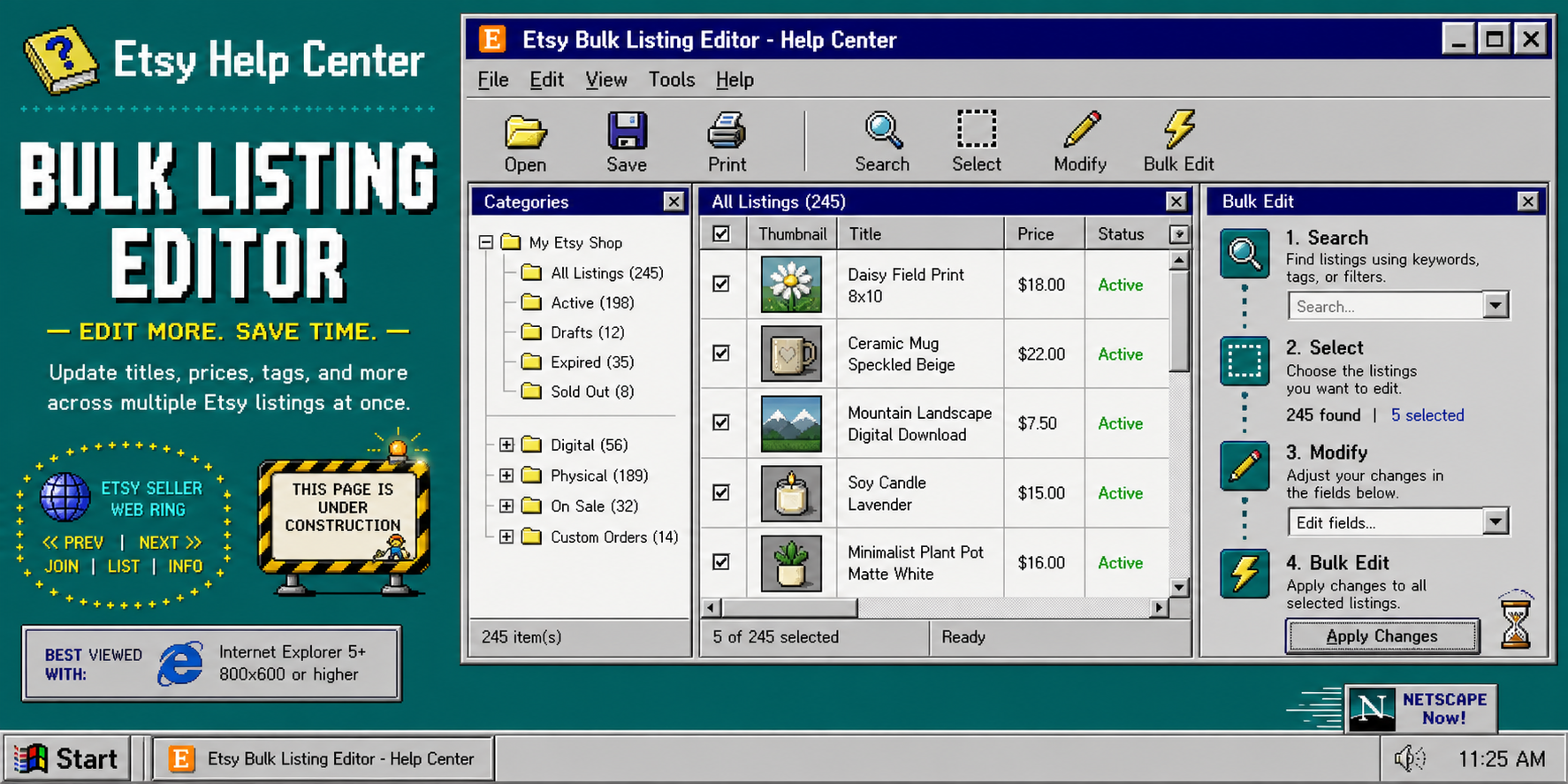
If you edit Etsy listings by hand, a simple price change can turn into an afternoon of clicking through product pages. The fix is to use a workflow that starts with the right search, narrows the selection, and changes only the fields you actually meant to touch. Bulk Listing Editor is built for that. It lets you search listings or variations, select the exact items, and bulk edit them in one pass. The app is $8/month and includes a 7-day free trial if you want to test the process first.
If you also keep Etsy channels in sync elsewhere, How to Sync Etsy Listings to Instagram and Facebook Without Manual Uploads is the related cleanup workflow.
You need two things before you start: access to the shop, and a short list of changes you actually want to make. Decide up front whether you are editing whole listings or just variation options, because that choice determines the mode you should use.

1. Choose the Right Mode
Open the app and decide whether you are working in Listings mode or Variations mode.
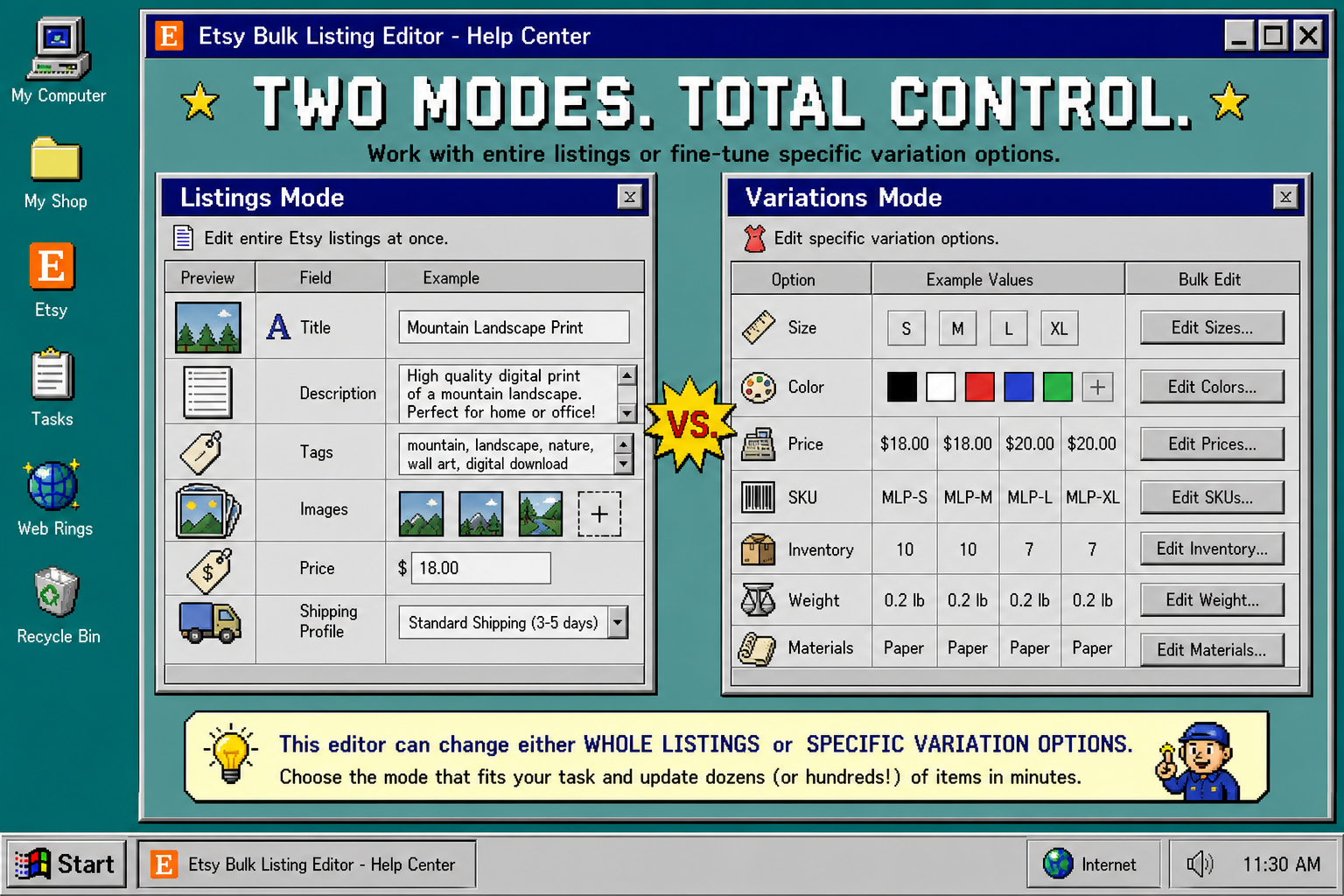
- Use Listings mode for title, description, tags, materials, images, price, personalization, inventory, or SKU changes that apply to the whole product.
- Use Variations mode when you need to change size, color, variation options, or variation-level price and inventory details.
You should see the app split your catalog into the level you want to edit. If you pick the wrong mode, the selection step becomes messy before you even start.
2. Search Before You Select
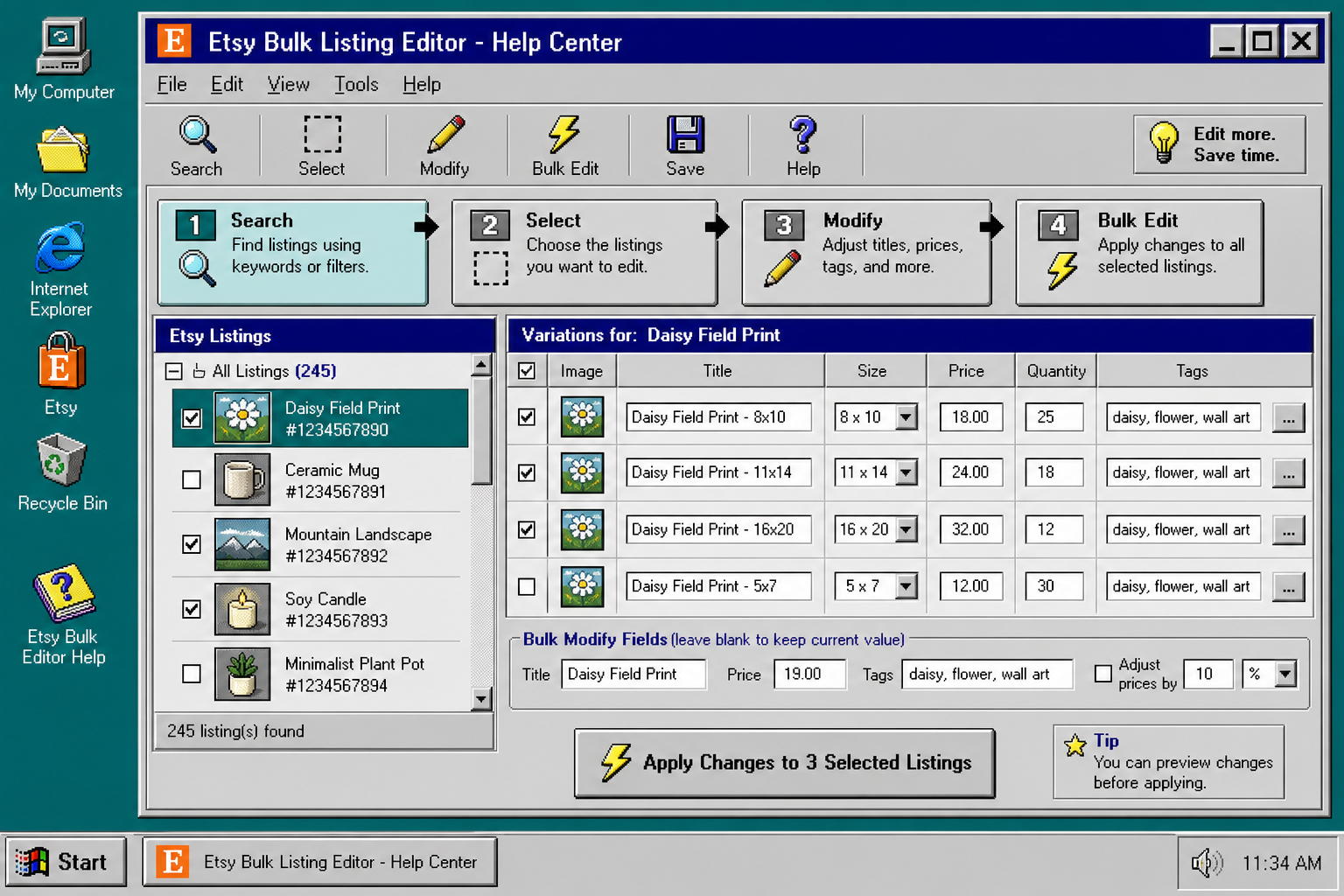
Use the search step to narrow the target set before you click any checkboxes. Search by listing name, status, tag, or any other filter the screen exposes.
The goal is not to see everything. The goal is to make the list small enough that you can tell, at a glance, whether you found the right products. When the list is still too broad, refine the search again.
You should see a shorter list with only the listings or variations that need the change.
3. Select Only the Rows That Should Change
Check the exact listings or variations you want to modify. If a listing has several variations, confirm that you selected the correct variation rows, not just the parent product.
Pause here and count the selection. A bulk edit only helps if the selected group is the group you meant to touch. If the count looks wrong, go back and adjust the search instead of forcing the change through.
You should see a clear selection count before you move to the edit fields.
4. Fill In Only the Fields You Intend To Change
Now specify the modifications. Bulk Listing Editor supports batch changes to titles, descriptions, tags, materials, personalization, images, inventory, SKUs, and variation adds or removals. It also supports search-and-replace inside text fields, which is useful when you need to standardize a phrase across many listings.
Keep the edit narrow. If the only change is price, leave the other fields alone. If the only change is a tag cleanup, do not rewrite the description at the same time. Narrow edits are easier to review and easier to undo mentally later.
You should see only the fields you intentionally filled in.
5. Confirm the Batch Edit and Check the Result
When the selection and fields look right, click Bulk Edit. If the screen shows a preview, use it before you confirm. If the app only shows the selection and the edit fields, take one last look at both.
After the batch finishes, check a few of the edited listings in Etsy itself. Verify the title, price, tags, or variation values on the live listing so you know the update landed where you expected.
You should see the edited listings updated without the rest of the catalog changing.
Listings Mode vs. Variations Mode
This is the part that keeps most people out of trouble. Listings mode is for the whole listing. Variations mode is for the options inside it.
Use Listings mode when the change applies to the product as a whole. Use Variations mode when the change belongs to size, color, or another option that sits under the product. That split matters because it tells you whether to target the parent listing or the child options.
If you use the same batch-edit mindset on other catalogs, the search-first rule is the same in How I Bulk Edit Shopify Products Without Breaking Variants, How to Schedule Bulk Shopify Catalog Changes Without Breaking Variants, and How I Build a Shopify UGC Hook Matrix From One Product.
That is the same habit I use when the job is not glamorous: search first, select second, edit third. It keeps the bulk action small enough that you can still reason about it after the fact.
Troubleshooting
If the edit does not look right, do not rerun the bulk action immediately. Find the mistake first.
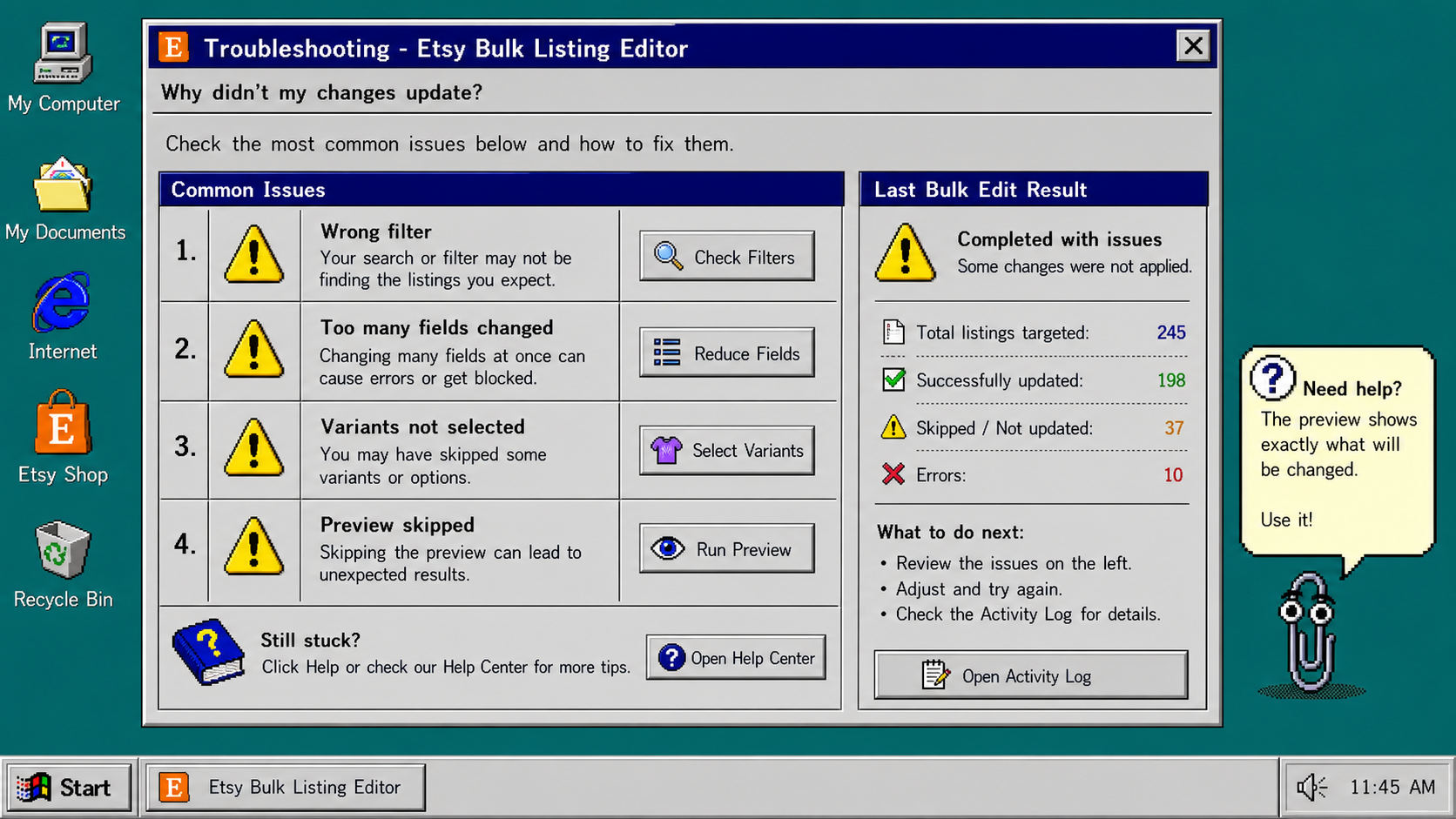
- If you found too many items, tighten the search filters before you select anything.
- If the wrong variation changed, go back to Variations mode and check the child rows one by one.
- If a text change affected too much, narrow the search-and-replace phrase.
- If nothing changed, confirm that at least one row was selected and that the fields were actually filled in.
- If the result still looks off, use a smaller test batch before touching the full catalog.
The main rule is simple: search first, select second, edit third. That saves time and keeps you from turning one quick correction into a catalog cleanup job.
If you want to try it, start with the Bulk Listing Editor landing page, use the 7-day free trial, and make one small batch change before you scale it to the rest of the shop.
Comments
Post a Comment