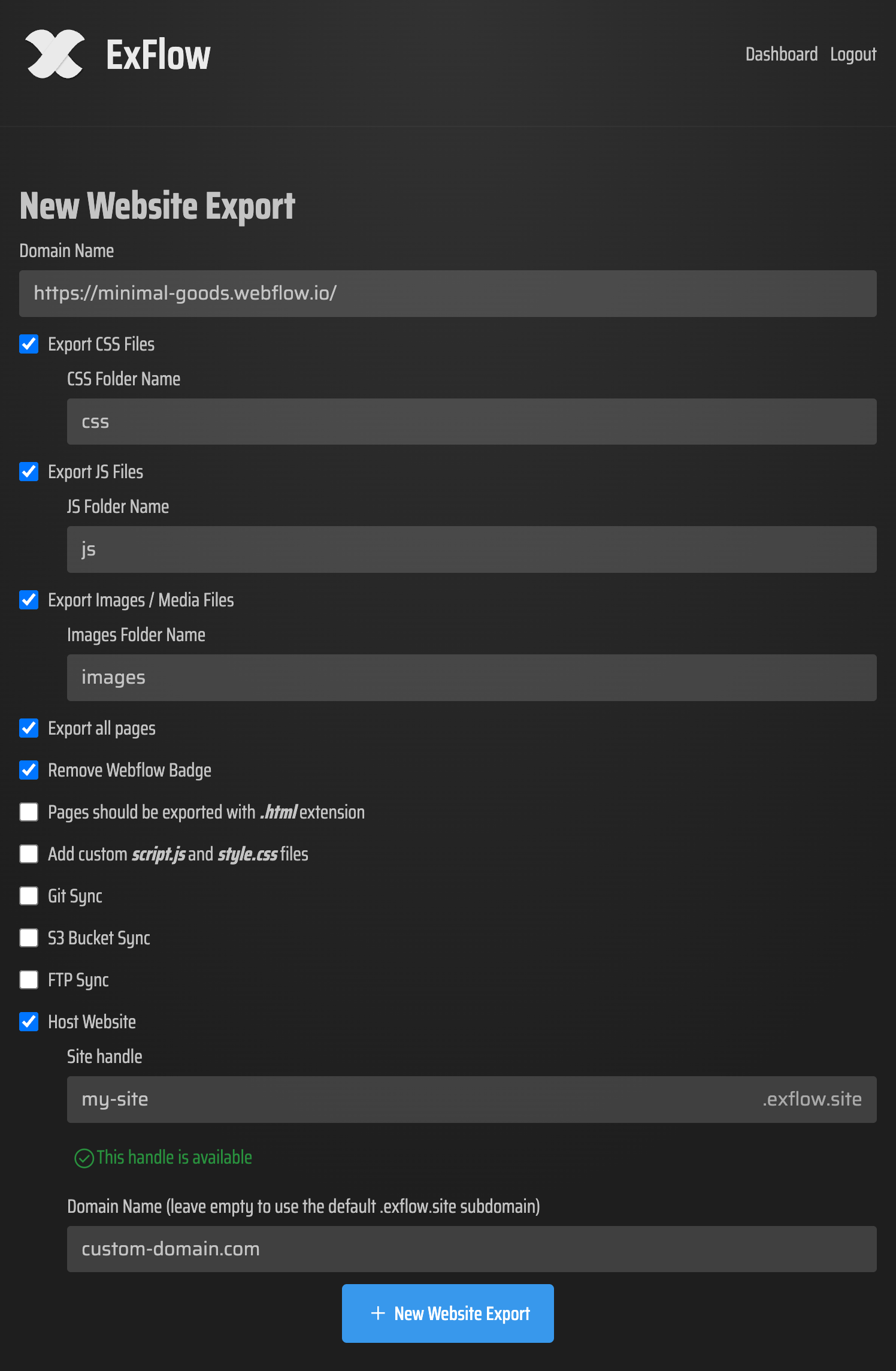
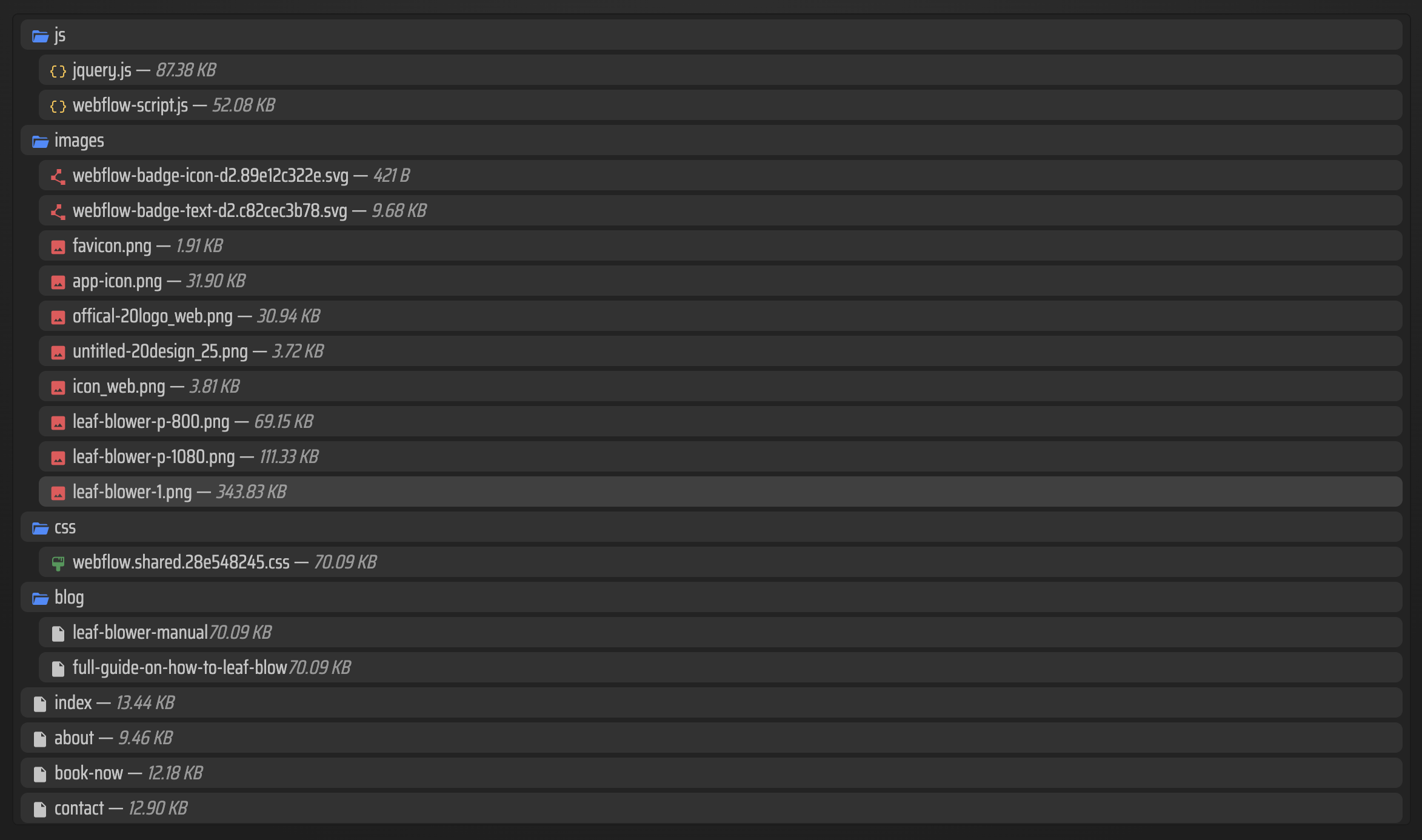
If you like how Squarespace handles design but want the files under your control, the cleanest move is to export the site to static HTML and host it yourself. ExFlow.site is built for that: you enter a Squarespace URL, choose what to export, and it can download the site as static content with pages, CSS, JavaScript, images, and media.

What You Get From The Export
A good export is not just a ZIP file. It should give you:
- Pages exported with
.htmlextensions - CSS files, JS files, and image/media assets
- Optional
script.jsandstyle.cssfiles for custom tweaks - A path to sync to Git, S3, or FTP
- A hosting option if you want ExFlow to serve the site for you
That matters because the goal is not to mirror Squarespace in a brittle way. The goal is to leave with a site package you can inspect, edit, version, and deploy.
The exact limits can vary by plan, so I think about this as a fit question: how large is the site, how often do you need to export, and do you want syncing or hosting built in.
The Practical Export Checklist
I usually recommend a small, low-risk first pass:
- Start with the live Squarespace URL.
- Select export options for CSS, JS, images/media, and all pages.
- Export a limited set of pages first so you can compare layout and navigation.
- Check the output for menus, key landing pages, and image-heavy sections.
- Add custom
script.jsorstyle.cssonly when you need extra behavior or styling. - If the site is password protected, make sure the owner provides the password so the export can complete cleanly.

How I Decide Where To Host It
Once the export is clean, pick the simplest hosting path that matches the project:
- ExFlow hosting if you want the shortest path from export to live site.
- Git if you want version control and deployment flexibility.
- S3 if you want cheap static hosting with plenty of headroom.
- FTP if the target server already exists and that is the least disruptive route.
ExFlow supports syncing to Git, S3, and FTP, so the export step and the deployment step can stay connected instead of becoming two separate projects. If you are using one of those sync options, expect to enter the relevant credentials during setup and treat them like any other deployment secret.
If you are comparing this workflow to other static-site moves, the same logic shows up in How to Self-Host a Squarespace Site on GitHub Pages Without Rebuilding It, How I Export Webflow Sites to Static Hosting, Git, or FTP, How to Export a Framer Site to GitHub Pages Without Rebuilding It, and How to Export a Framer Site to HTML, CSS, JS, and Images.
When Exporting Makes Sense
Exporting usually makes sense when:
- The site is stable and the design is already approved.
- You care more about ownership and hosting control than live editing inside Squarespace.
- The recurring platform cost feels high for what the site actually needs.
- You want the option to keep editing the files outside Squarespace later.
If you only need a quick landing page and Squarespace's editor is still the easiest thing for the team, staying put may be fine. But if you want the files, not just the interface, an export is the more durable answer.
The Short Version
Use Squarespace for the design workflow, then use ExFlow when you want the site to become something you can download, store, and host on your own terms. Start with one small export, verify the output, then move the rest of the site once you know the files are clean.
If you want the simplest path, try ExFlow.site and export a small Squarespace page set first.
Comments
Post a Comment