
If your Squarespace site is an important part of your ecommerce operation, a content export alone is not a real backup. What you want is a working static copy of the pages, media, styles, and scripts you can inspect, keep, and host elsewhere if the need arises.
I have seen this matter most during redesigns, client handoffs, and those moments when a store owner simply wants a second copy before changing a theme, a product page, or a domain setup. Here is a practical way to make a Squarespace backup that is useful beyond a spreadsheet or XML file.
TL;DR
A self-hostable Squarespace backup should include your public pages, images, CSS, JavaScript, navigation, and metadata—not just your written content. Export it, test it locally or on a private staging URL, then deploy the static copy to a host you control.
Start With the Backup You Actually Need
Before exporting, decide what problem the copy needs to solve. A backup for a redesign is different from one for a client handoff or a hosting move. For most small stores, the useful baseline is a copy of every public page plus the assets and behavior that make those pages work.
Make a short inventory first:
- Your homepage, collection or product pages, blog posts, and legal pages
- Navigation menus and important internal links
- Images, downloadable files, embedded media, and fonts
- Analytics, pixels, custom code, and third-party widgets
- Contact forms, newsletter forms, checkout paths, and any member-only or password-protected areas
That inventory keeps you from confusing a content archive with a website backup. If a customer cannot load the images or navigate to the product information, the copy is not yet useful.

Export the Published Site as Static Files
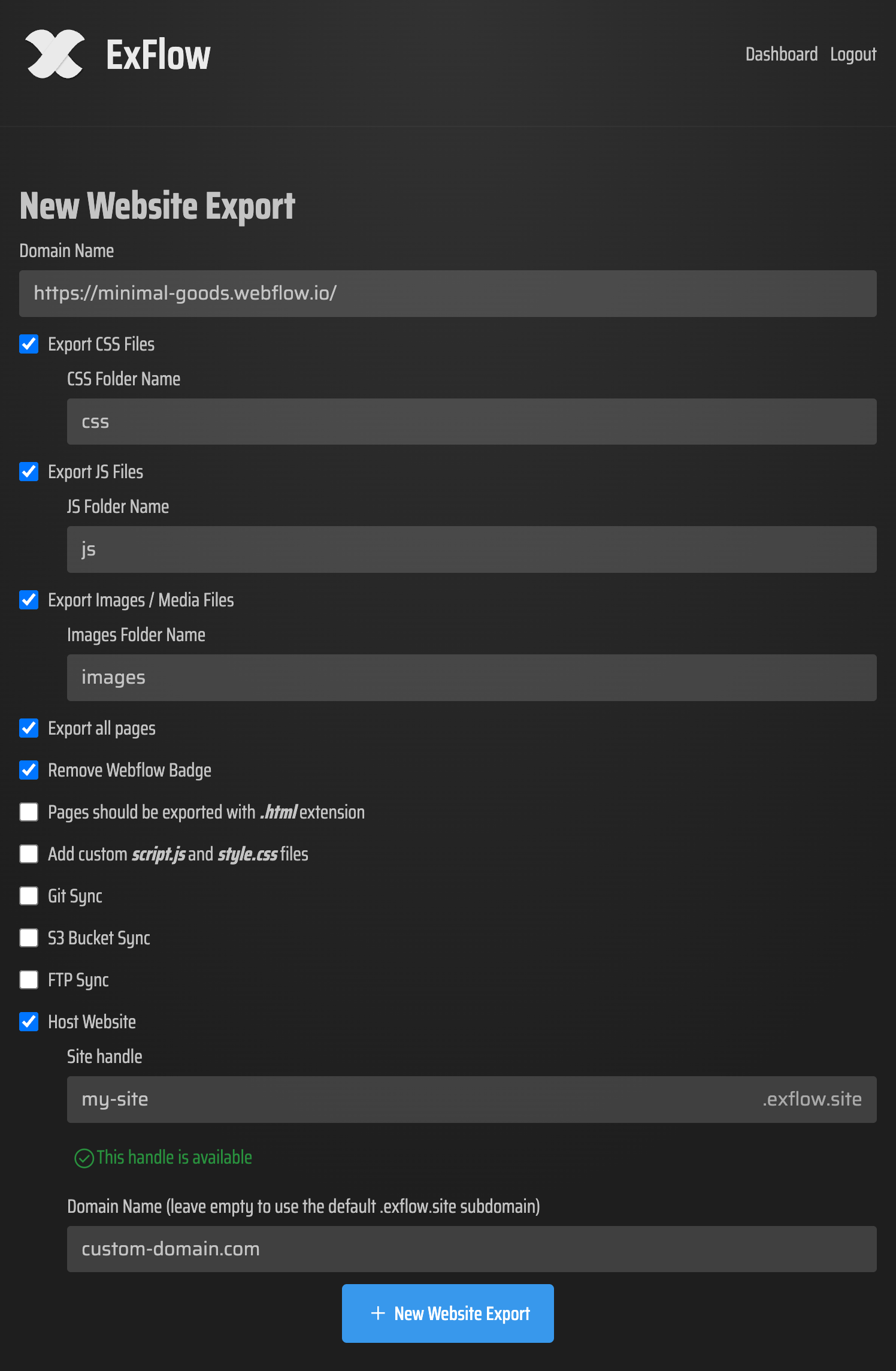
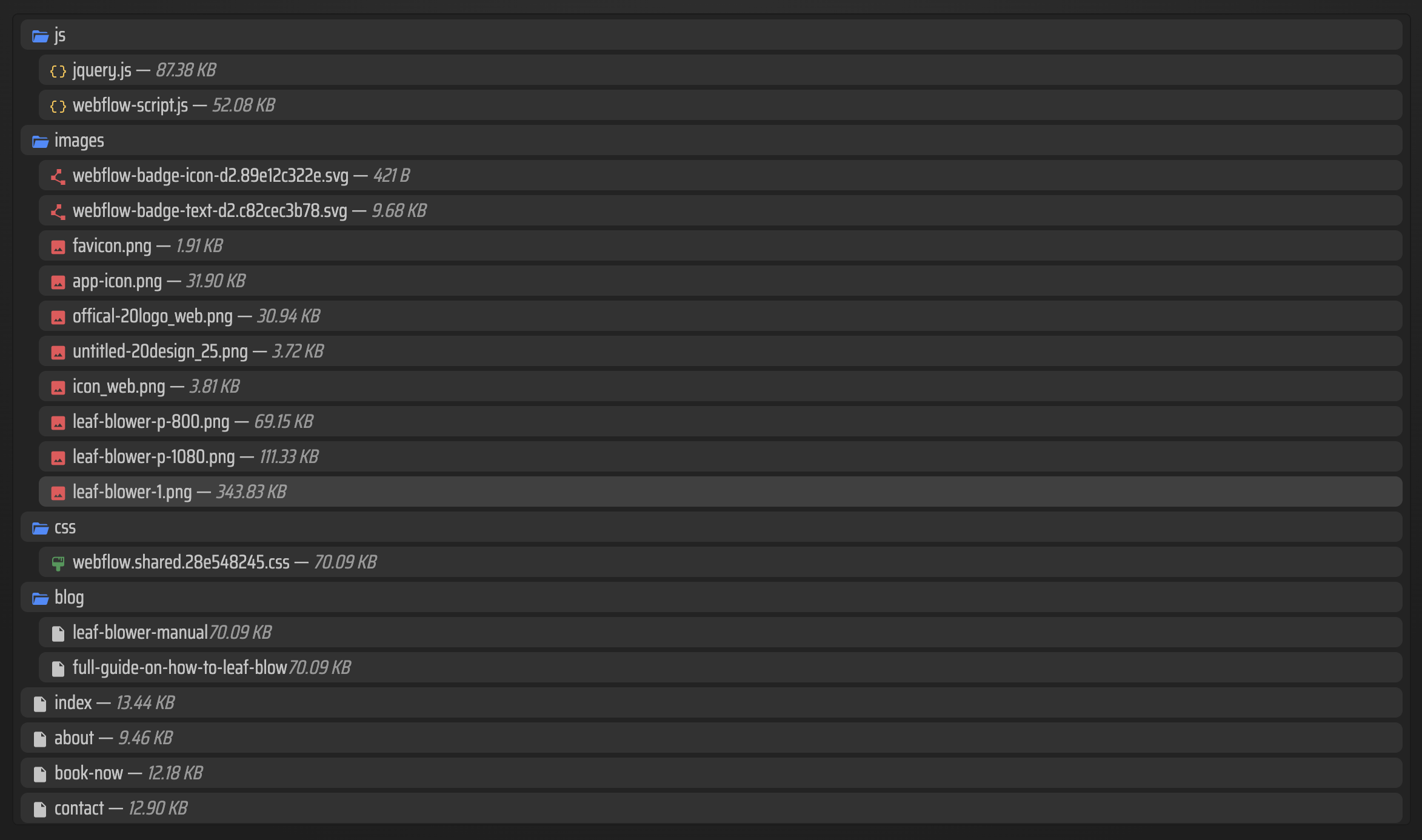
Squarespace makes it easy to build a polished site, but the underlying site files are not normally portable as a complete package. For a full public-site copy, use a platform-aware exporter rather than relying on a generic downloader. ExFlow's Squarespace exporter is designed to collect a published site into static HTML, CSS, JavaScript, and media files, then let you download a ZIP or sync the result to Git, S3, or FTP.
The simplest workflow is:
1. Enter the published Squarespace URL.
2. Run the export and download the static output as a ZIP.
3. Keep the original ZIP somewhere versioned and separate from your live site.
4. Unzip a working copy for testing and deployment.
If your public site is password-protected, make sure the export workflow supports that case and provide the password only where you trust the tool. The goal is to capture the visitor-facing version you need to preserve.
For a useful visual reference, ExFlow also shows what an export configuration looks like and an example of the exported file list.
Check the Static Copy Before You Call It a Backup
Do not wait until an emergency to discover that the copied site has a missing hero image, a broken menu, or a form that only worked in the original platform. I use a quick QA pass before putting any backup on a shelf.
Open the exported homepage and a few representative templates: a sales page, a blog post, a product-focused page, and your contact or lead-capture page. Then check the following:
- Navigation and links: menus, footer links, buttons, and redirects should reach the intended pages.
- Media: verify images, background images, galleries, videos, and lazy-loaded assets.
- Responsive behavior: review the key pages on a narrow mobile viewport as well as desktop.
- Metadata: inspect page titles, descriptions, canonical settings, and social-preview images where relevant.
- Scripts and custom code: test analytics, embeds, cookie tools, and custom styling without assuming they survived unchanged.
- Forms and checkout: a static export can preserve the page layout, but a form endpoint or commerce checkout may still depend on a live service. Document what needs replacement before going live elsewhere.

This is also the step that makes a future migration much calmer. If you are planning a larger move, my guide on moving a Squarespace site when forms and checkout cannot export explains how to separate the portable front end from the services that need a replacement.
Put the Copy Somewhere You Control
Once the static output passes QA, you have options. A ZIP stored in cloud storage is a good baseline, but a deployed preview is better proof that the copy works. You can sync the output to Git for version history, publish it to an S3-backed static site, or upload it to a traditional host with FTP. If you want fewer moving parts, ExFlow Hosting is another managed path for the exported site.
For store owners, I recommend keeping two things: one untouched export ZIP and one tested deployment. The untouched copy preserves the exact snapshot; the deployment gives you a fast recovery reference and a link you can share with a client or developer.
A versioned backup is especially useful before an agency handoff. The same idea is behind this practical Framer handoff without hosting lock-in: a clean, portable site copy makes the conversation about ownership much simpler.

Keep the Backup Habit Lightweight
You do not need to export every day. Create a fresh copy before a redesign, a major product launch, a new domain connection, or a significant custom-code change. Name the archive clearly with the site and snapshot date, record where it is deployed, and note any features that require a separate service.
For Webflow sites, the same principle applies, although CMS routes need their own attention; this Webflow backup checklist is a useful companion. ExFlow also offers dedicated Webflow and Framer exporters, so the workflow can stay platform-specific instead of treating every site builder like a simple HTML page.
Your Next Step
Make an inventory of the pages and services you would need if your Squarespace site had to move tomorrow. Then run a Squarespace export with ExFlow, test the static copy on a staging URL, and save both the original ZIP and the verified deployment. That gives you a backup you can actually use—not just one you hope is there.
Comments
Post a Comment