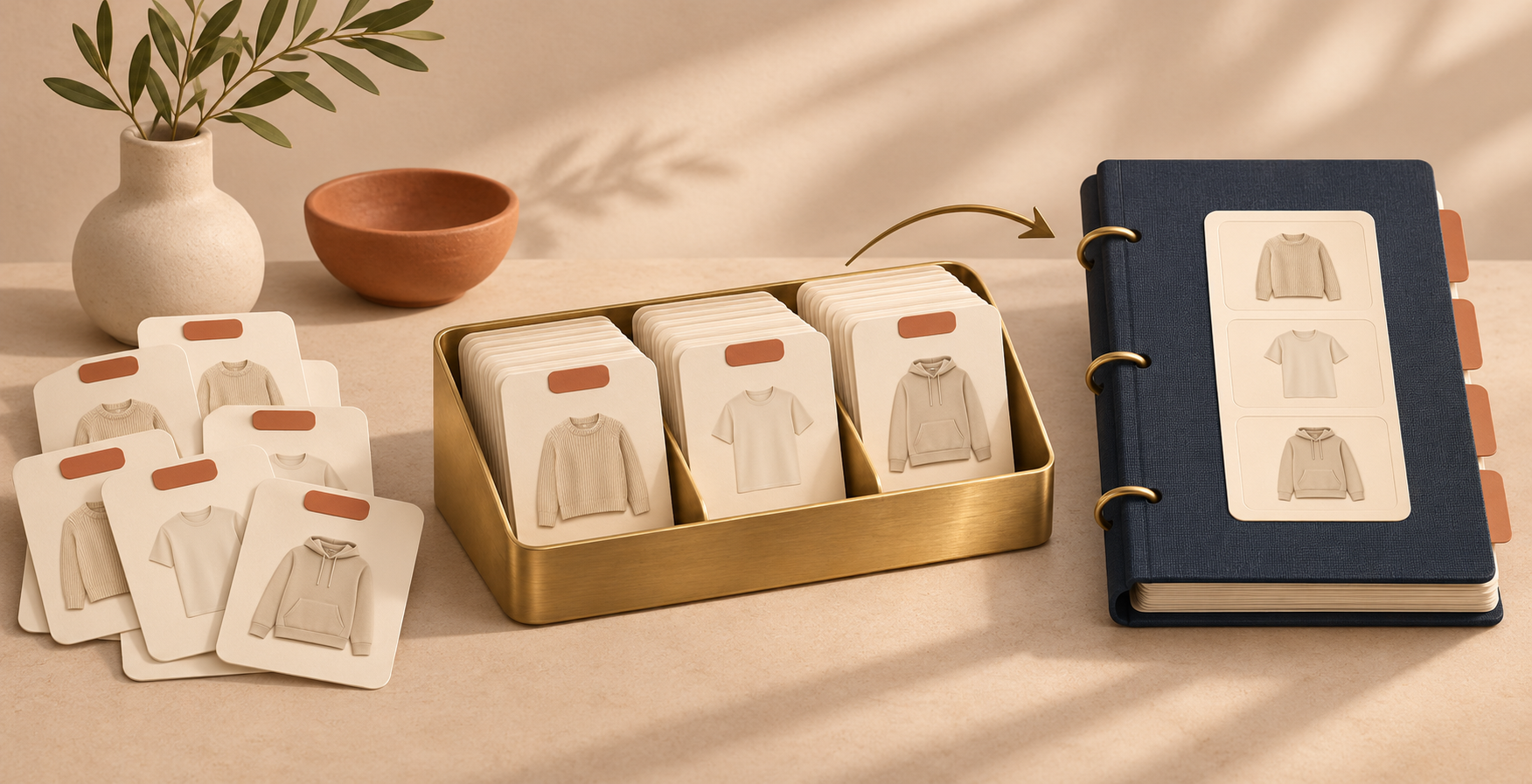
Near-duplicate product types should usually be consolidated only when they mean the same thing to your team and shoppers. Keep a label when it drives a real collection, reporting, or operational decision; otherwise, merge it into a clear canonical type and test the change on a small sample before touching the full catalog.
That is the difference between a cleanup and a catalog rewrite. I have seen stores accumulate labels such as `T-shirt`, `T shirts`, `Tees`, and `Tee Shirt` as products arrive from different suppliers. The problem is not that one spelling is morally right. It is that filters, exports, and handoffs become harder when one product family has four names.

First, separate product type from product category
Shopify treats a product category and a product type as different fields. A category comes from Shopify’s standard taxonomy; a product type is a store-defined grouping. Shopify recommends using standard categories where they fit, while product types are useful for a custom grouping that your business actually needs. Read Shopify’s product type guidance before deciding that a product-type cleanup should change categories too. It usually should not.
If you need the mechanics of making a type change, this companion guide on changing Shopify product types in bulk covers that part. Here, the job is deciding what the new value should be.
Build a short candidate list, not a giant spreadsheet
Export or list the current product types, then group only obvious lookalikes together. For each group, write the proposed canonical label and one sentence explaining its meaning. Avoid fixing tags, titles, categories, and variants in the same pass. A bounded change is easier to check and reverse.
For example, a clothing store might start with these candidate groups:
| Existing labels | Canonical proposal | Why |
| --- | --- | --- |
| `T-shirt`, `T shirts`, `Tees` | `T-Shirts` | Same shopper-facing product family; spelling varies only |
| `Hoodie`, `Zip Hoodie` | Keep separate for now | The closure style may matter to collections and merchandising |
| `Gift`, `Giftable`, `Gifts` | Investigate | These may be campaign tags disguised as a product type |
| `Summer Dress`, `Midi Dress` | Split the intent | Season and silhouette answer different questions |
Use this decision matrix for every group:
1. Merge when the labels describe the same kind of item and no workflow treats them differently.
2. Keep separate when the distinction changes a collection, fulfillment rule, reporting view, or the way a shopper browses.
3. Split when one label hides two genuinely different product families.
4. Investigate when the value reads like a campaign, material, color, audience, or temporary status rather than a stable product type.
This is also a good moment to revisit your tag logic. A label that is too temporary or multi-purpose for product type may fit better in a documented tag convention. Start with this guide to planning a tag cleanup without losing catalog logic rather than moving values blindly.

Run a representative pilot before the full cleanup
Choose five to ten products from each candidate group. Include at least one product with variants, one item in an automated collection, and one best seller or active campaign product. Then change only the product type in that pilot.
Check these four things before widening the task:
- Does each product still appear in the intended collections?
- Do storefront filters and search results still make sense?
- Does the product retain the right variants, prices, and media?
- Does the revised label make sense to someone who did not design the cleanup?
A tool such as Ultimator Bulk Editor is useful here because its task flow separates the selection criteria from the update itself, and it can run a task immediately or on a schedule. The current listing also describes product and variant bulk editing, filtering, and scheduled tasks. That supports a narrow pilot first; it does not replace your review of the affected products.
Treat the full task as a controlled catalog change
Once the pilot is sound, create a separate bulk task for each canonical mapping. Name the task so another operator can tell exactly what it does: `Product type: Tees → T-Shirts` is better than `catalog cleanup`. Save the selection criteria, the old value, the new value, the product count, and the person who approved it.
If you are working with several changes, do not combine `Tees → T-Shirts` with `Giftable → Gifts` just because both are on your list. The first is a spelling consolidation; the second could change how your store classifies a merchandising concept. Separate tasks make a bad assumption easier to isolate.
The same restraint matters when you are also editing tags. For a safer bulk-tag workflow, use this checklist on updating Shopify product tags without breaking the catalog.

Reconcile the result instead of trusting the completion notice
After the full update, sample the same product shapes you used in the pilot plus a few random records. Compare the intended count with the updated count, then inspect the storefront—not just the admin. Look at one collection, one search result, and one product page for each changed family.
A small reconciliation record makes this repeatable:
- task name and date
- old and new product-type values
- expected and completed record counts
- sample product URLs
- collection or filter checks
- any exceptions left unchanged
For a deeper post-change habit, see how to reconcile a Shopify bulk edit before calling it done.
Keep the catalog language useful
The best product-type cleanup does not make every field perfectly uniform. It gives the team a small, explainable vocabulary that holds up in collections, reporting, and daily merchandising. Start with one near-duplicate group, apply the matrix, run a representative pilot, and document the result. When the pattern is clear, use Ultimator Bulk Editor to apply the approved mapping in a distinct task rather than treating the whole catalog as one undo-less edit.
Comments
Post a Comment