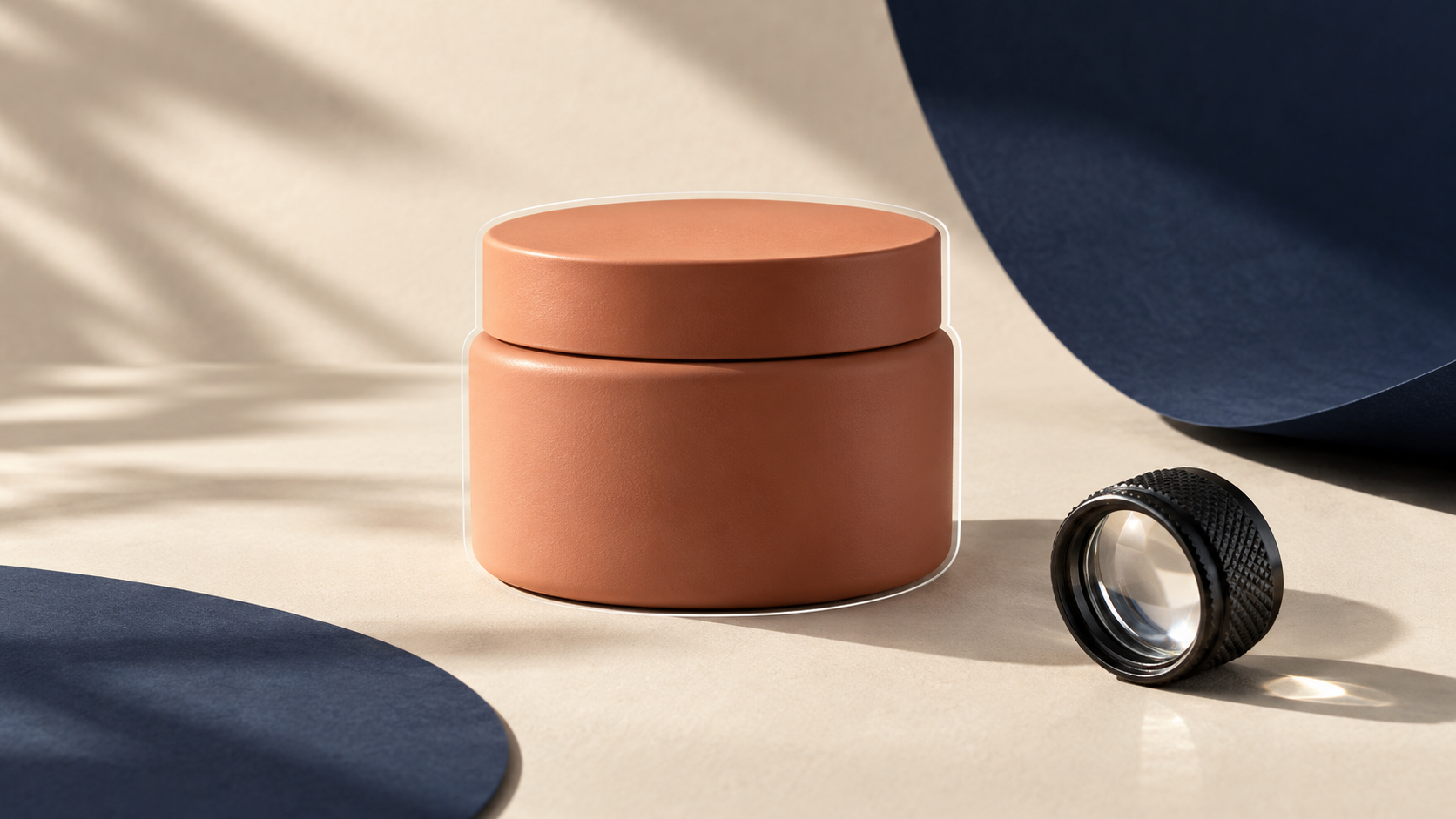
A clean product cutout is often the fastest way to make a storefront image look intentional. The important part is not simply deleting a background—it is keeping the product truthful. A rough edge around a bottle, a missing bit of packaging text, or an altered shadow can make a listing feel less trustworthy.
I have seen small stores lose more time fixing those details after publication than they would have spent making one careful cutout up front. The simple answer: use a selection, refine it at full size, keep the original on its own layer, and do a final truthfulness check before export.
ImageFlow is useful here because it is a free, browser-based editor with layers, masks, adjustment layers, PSD/PSB support, and on-device AI selection and background removal. That gives you an editable working file instead of a one-shot result.
What a good ecommerce cutout should preserve
A cutout is ready for a collection page, marketplace, or ad only when shoppers can still tell exactly what they will receive. Keep the real color, dimensions, texture, label details, included accessories, and distinctive edges intact. You can improve the setting; you should not improve the product into something it is not.
This matters even more when the image will be displayed next to other catalog photos. Consistent backgrounds and framing help a storefront look coherent, but they should never hide a color mismatch or make an accessory look included when it is not.

A browser workflow for an accurate product cutout
1. Start with the best source photo you have
Choose the sharpest image with clear separation between the product and its original background. A clean source reduces the amount of mask repair later. If the product has fine hair-like fibers, transparent material, reflections, or a complicated shadow, plan on a closer manual review rather than trusting any automatic selection completely.
Before editing, duplicate the base layer. That single habit gives you a safe original to compare against if an edit becomes too aggressive. It also makes it easier to build reusable product-image templates rather than starting from zero for every SKU.
2. Make the first selection, then turn it into a mask
Use ImageFlow's on-device selection or background-removal tools to get a first pass, then apply the result as a layer mask. A mask is better than permanently erasing pixels because you can paint an area back when the tool misses a handle, a cap edge, or an important part of the packaging.
At this stage, do not judge the selection only at fit-to-screen size. Zoom in around type, seams, translucent edges, metal, and anything that shows the product's true material. On a white marketplace background, a one-pixel halo can be far more visible than it was in the original photo.
3. Place a neutral temporary background behind the product
Put a simple solid-color layer beneath the masked product. I usually test a light neutral first, then a darker neutral. Switching backgrounds reveals both light fringes and dark gaps around the edge.
Keep this test background separate from the final composition. That lets you decide whether the catalog needs plain white, a subtle brand color, or a lifestyle image without locking yourself into the first choice. If you are working toward a more polished collection presentation, the same restraint helps when using AI product photos on Shopify collection pages: the product itself still needs to remain accurate.
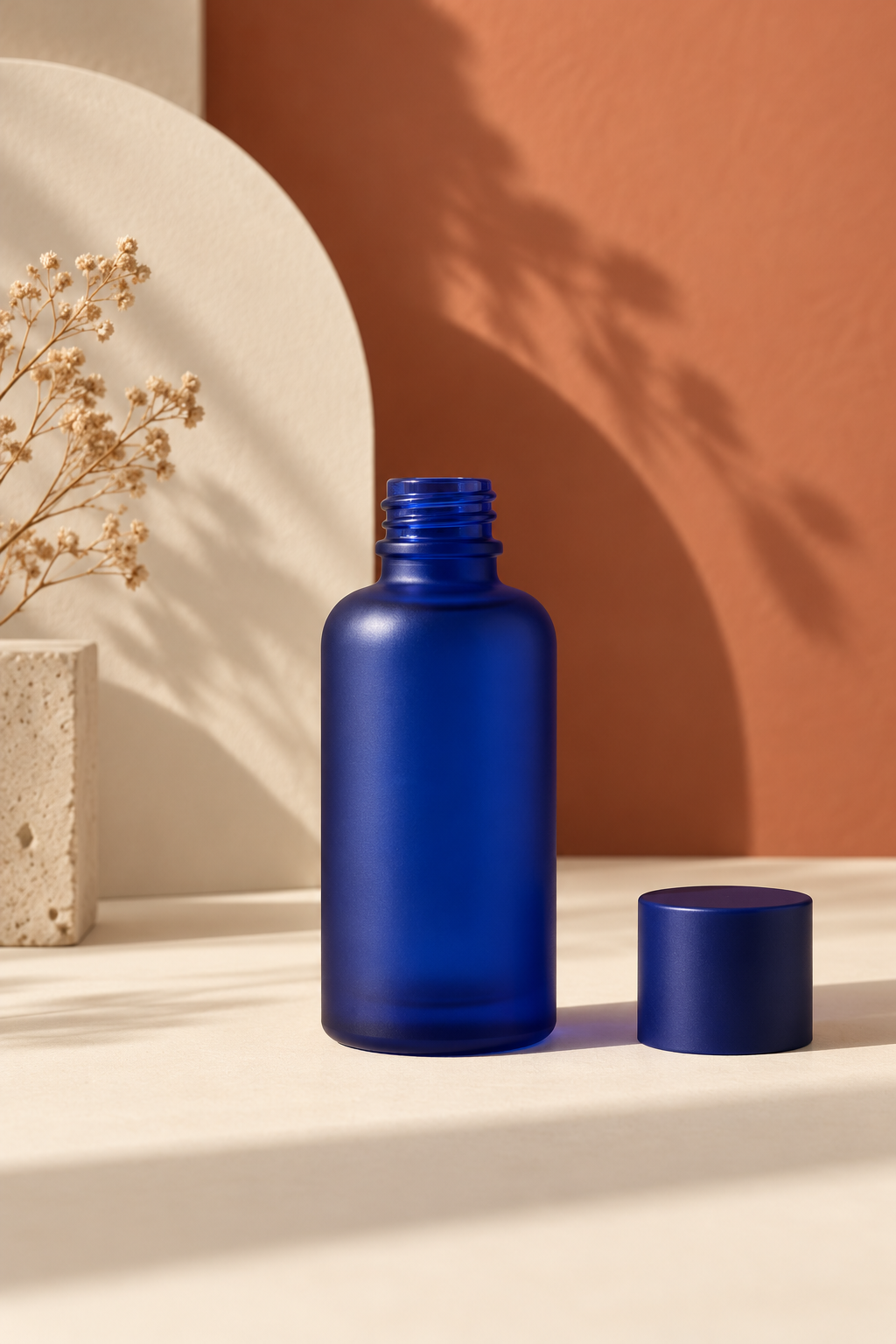
4. Refine only the areas that need it
Use a soft brush on the mask for gradual edges and a harder brush for crisp packaging corners. Work in short passes. It is safer to reveal or conceal a little at a time than to try to repair an entire outline with one broad stroke.
For a distracting object that sits outside the product boundary, ImageFlow's content-aware fill can be a practical cleanup option. Review the filled area carefully at full size, especially near logos, product texture, or any line that defines the item's shape. The goal is to remove the distraction, not invent product detail.
5. Correct light and color without changing the item
Adjustment layers are a good place to make modest exposure, contrast, or color corrections while preserving the source pixels. If you use relighting, treat it as a way to make the scene feel more intentional—not a promise that every badly lit product photo can be rescued.
Compare the edited layer with the original before you export. The packaging color, finish, and material should still agree with the real item in front of you. I also recommend a quick technical review similar to this product-photo metadata check, particularly when several people will reuse the final asset.
The five-minute export check
Before saving the final file, run this short checklist:
- View the product at 100% and inspect its whole outline.
- Toggle the mask off and on to make sure no label, cap, or accessory vanished.
- Test the cutout on both light and dark backgrounds.
- Compare the edited product with the original for truthful color and proportions.
- Export the needed web format, then open that export once—not just the editable file.
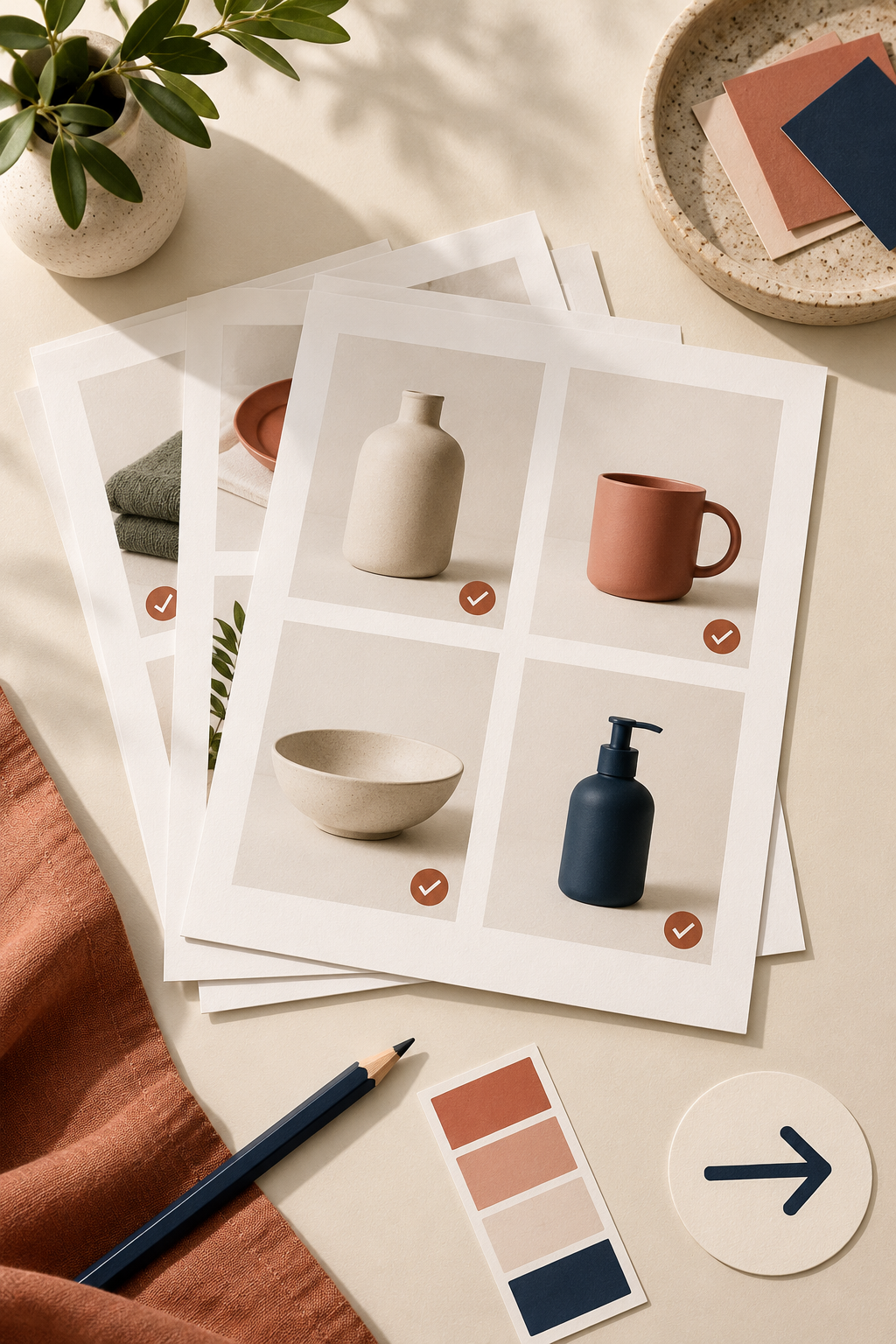
This is also a good time to check basic presentation details such as whether a pale product is still easy to see against its planned collection background. A Shopify color-contrast check can catch a perfectly clean cutout that is nevertheless difficult to browse.
When a browser editor is enough
For a product cutout, browser editing is often enough when you need layers, masks, a few controlled adjustments, and a dependable export. It is especially useful for a small cleanup, a new neutral background, or a review cycle where you want the working document to stay editable.
For very complex glass, hair, reflections, or production files with unusual PSD features, do a test on one representative image first. A clean workflow is not about claiming that one tool fits every job; it is about proving that the result holds up before you repeat it across a catalog.
Your next step
Open ImageFlow with one real product photo and make the smallest useful edit: create a selection, convert it to a mask, and inspect the edges on two neutral backgrounds. If that passes the five-minute check, save the editable master and export the storefront version with confidence.
Comments
Post a Comment